
Learn analytics
Use realtime website analytics
Monitor the latest 30 minutes of website activity and verify that recent changes are being measured.
What it is
Realtime analytics is a rolling view of the latest 30 minutes of measured website activity. It uses the same verified site context and metric definitions as the wider dashboard, with an hourly chart interval suited to recent data.
Why use it
Use Realtime to confirm that a launch, campaign, event or tracking change is producing recent activity before you move to a longer period for performance analysis.
Before you start
- Confirm the selected site and connection status. A setup or waiting state is not evidence that the website had no traffic.
- Use a real public-site visit when you are verifying installation or a new event. Preview environments can use a different hostname or script configuration.
How to use it
- 1
Choose Realtime
Open the date menu and select
Realtime. The dashboard now covers the rolling 30-minute window ending at the latest reporting boundary.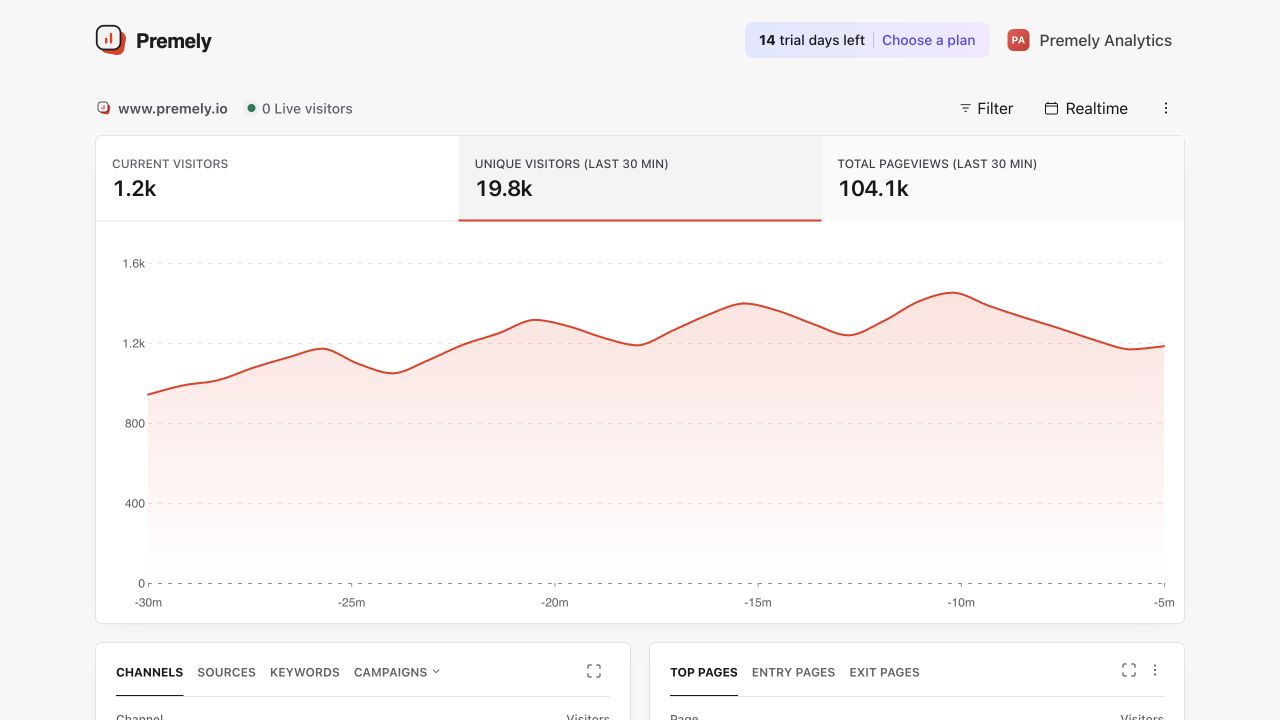
Use Realtime to verify a visit or event is arriving, then return to a longer period for analysis. Shown in Premely with disposable demo data; your values will differ.
- 2
Confirm recent traffic
Review unique visitors, visits and pageviews to confirm that activity is arriving. Allow for normal collection and processing time before treating a missing value as a setup problem.
- 3
Check the supporting report
Use Sources, Top Pages, Countries, Devices or Conversions to confirm that the recent activity has the context you expect.
- 4
Verify a custom event
Complete the action once, check Realtime or the matching conversion result and then use custom event tracking to correct the implementation if it does not appear.
- 5
Move to a longer range
Use Last 24 hours, Last 7 days or a complete campaign range before deciding whether performance improved. Realtime is a verification and monitoring view, not a stable long-term baseline.
What to expect
Realtime is a rolling window
Values can leave the report as they become older than 30 minutes. A falling count can reflect the window moving forward rather than a new problem.
Recent does not mean perfectly instantaneous
Events must be collected and processed before they appear. Use connection status and the latest-event state when you troubleshoot a delay.
Useful ways to apply this
Verify a launch
Confirm recent visitors, page activity and the expected source after a campaign or new page goes live.
Check a tracking change
Use one controlled visit to confirm the pageview or custom event, then return to a longer period for normal reporting.