
Conversions
Create a conversion goal
Define an event or page-path goal and see completed actions.
What it is
A goal measures one meaningful action on a site. Goals can use a custom event or a matching page path.
Why use it
Use goals to separate useful visits from activity that does not move a visitor towards an outcome you care about.
Before you start
- Choose one action with a clear name, such as a completed signup or a visit to a thank-you page.
- Make sure the matching event or page path exists on the site before you create the goal.
How to use it
- 1
Open Conversions
In the site settings, open Conversions and choose Create conversion.
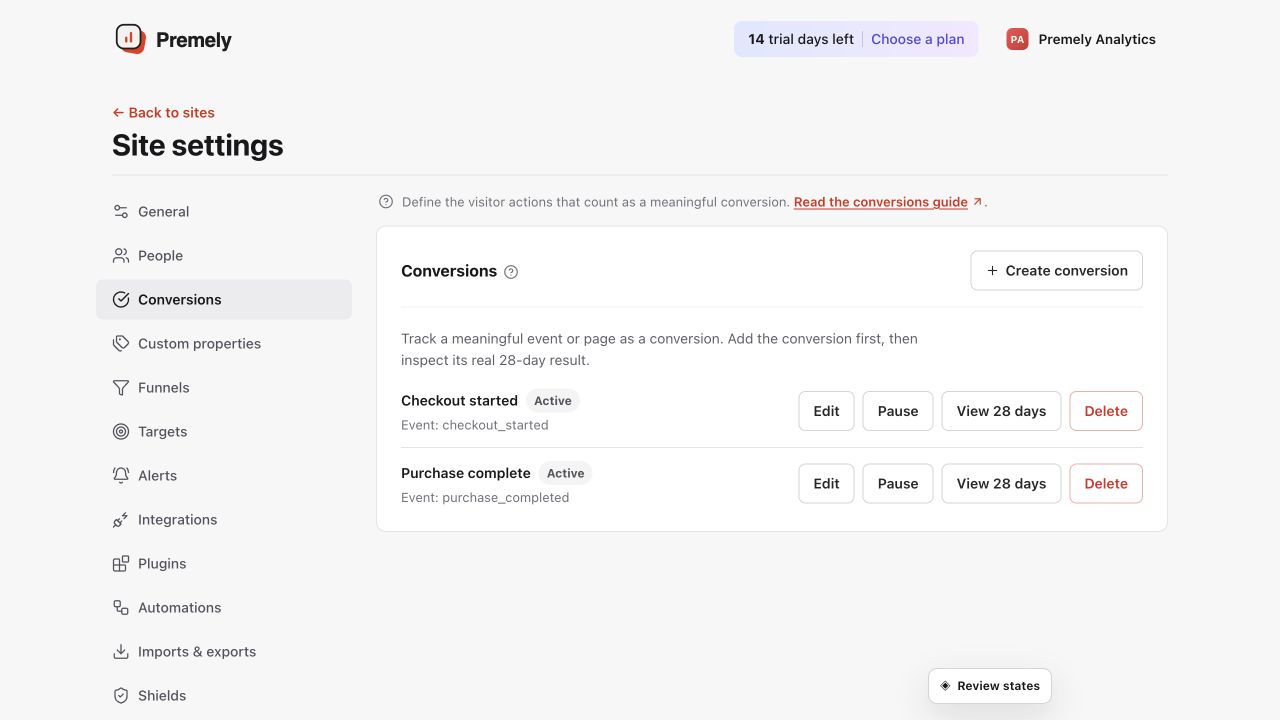
Review the existing goals before creating a new one for a completed, meaningful action. Shown in Premely with disposable demo data; your values will differ.
- 2
Choose the rule
Select Custom
eventwhen the site sends a defined event, or Page path when reaching a page represents completion.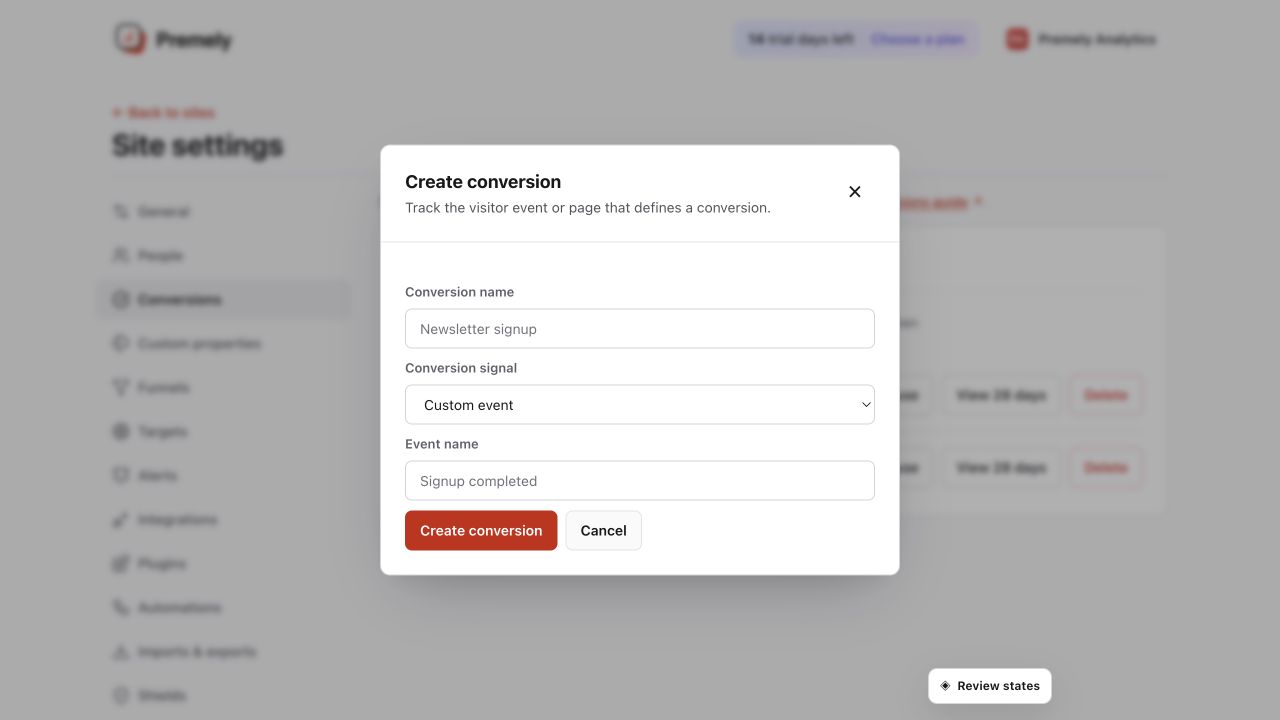
Give the conversion a clear name, choose the matching signal, and save only after the event is arriving. Shown in Premely with disposable demo data; your values will differ.
- 3
Name and save the goal
Use a short name that tells the team what completion means, then save it in the site context where it belongs.
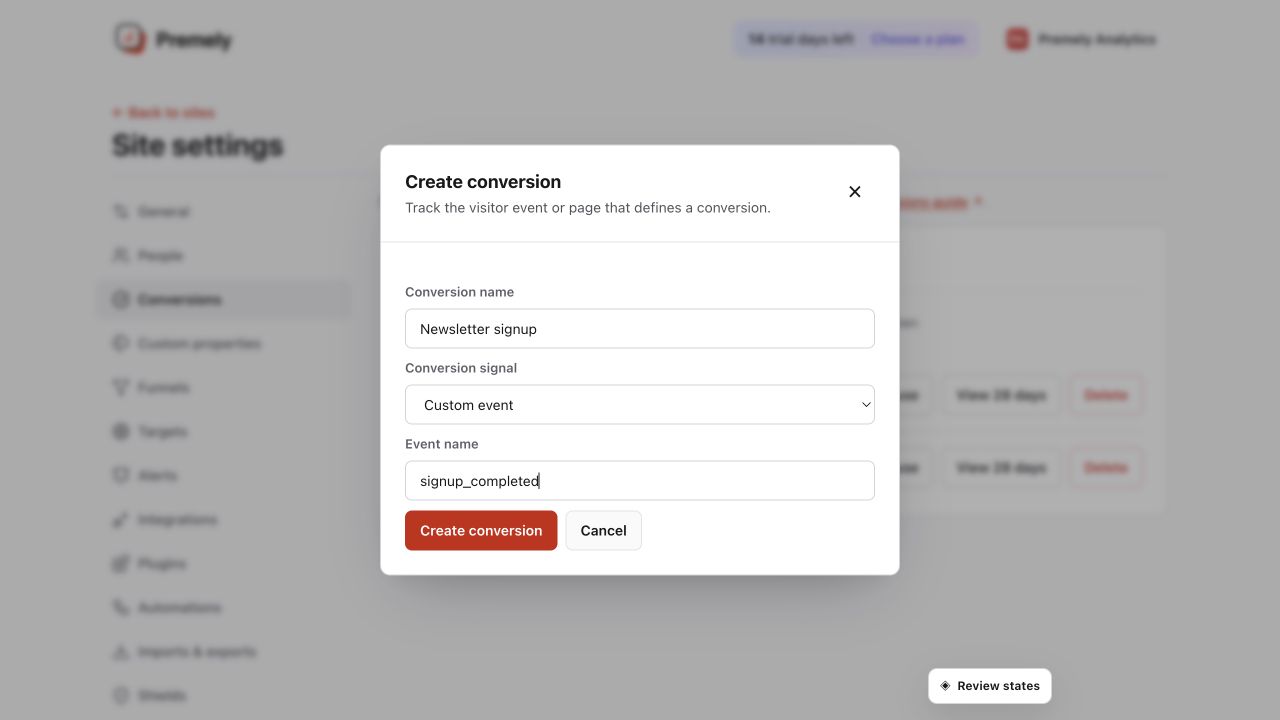
Check the conversion name and exact matching rule before saving. Shown in Premely with disposable demo data; your values will differ.
- 4
Review the result
Open the goal results to review the current 28-day view. Pause, rename or delete the goal when the definition no longer reflects the site.
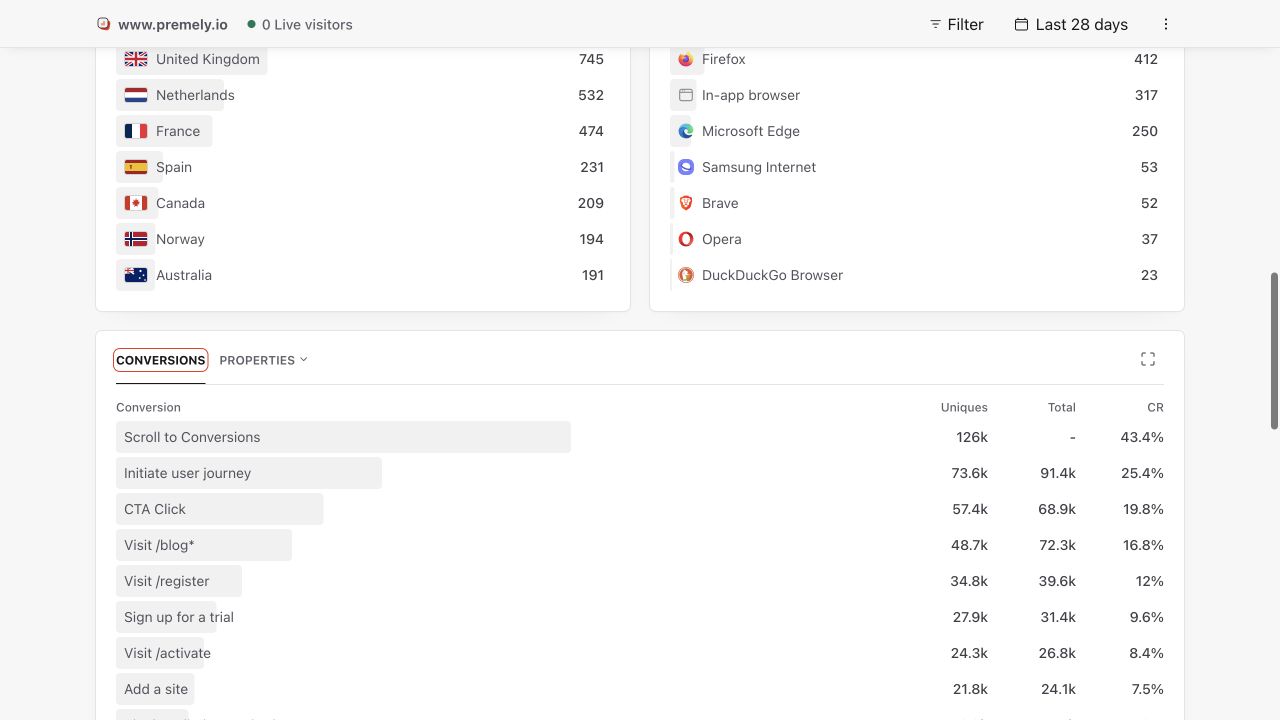
Use the dashboard conversion report to verify results after creating or changing a goal. Shown in Premely with disposable demo data; your values will differ.
What to expect
Paused goals stop measuring
Pause a goal while you change a form, event name or completion path. Resume it when the definition is ready again.
One goal should mean one outcome
Avoid using one goal for several unrelated actions. Separate goals keep reports easier to understand.
Useful ways to apply this
Lead generation
Track a form-success page or a verified lead-submitted event.
Product signup
Track the event or completion page that confirms the signup was finished.