
Integrations
Connect PayPal revenue
Verify PayPal capture, refund and reversal webhooks for one Premely site.
- PayPal

What it is
The PayPal connection uses a reserved Premely endpoint and the Webhook ID issued by a PayPal REST app.
Why use it
Use it when PayPal captures, refunds and reversals are the source of truth for the site's commercial outcomes.
Before you start
- You need owner or admin access in the Premely workspace.
- You need permission to manage webhooks for the correct PayPal REST app.
- Choose Sandbox or Live to match the PayPal app you are connecting.
How to use it
- 1
Reserve the Premely endpoint
Open your site's Settings, choose Integrations, find PayPal and choose Connect. Choose Test for PayPal Sandbox or Live for the live app and select Create PayPal endpoint. Copy Webhook URL and keep the dialog open. It remains inactive until you add the matching PayPal Webhook ID.
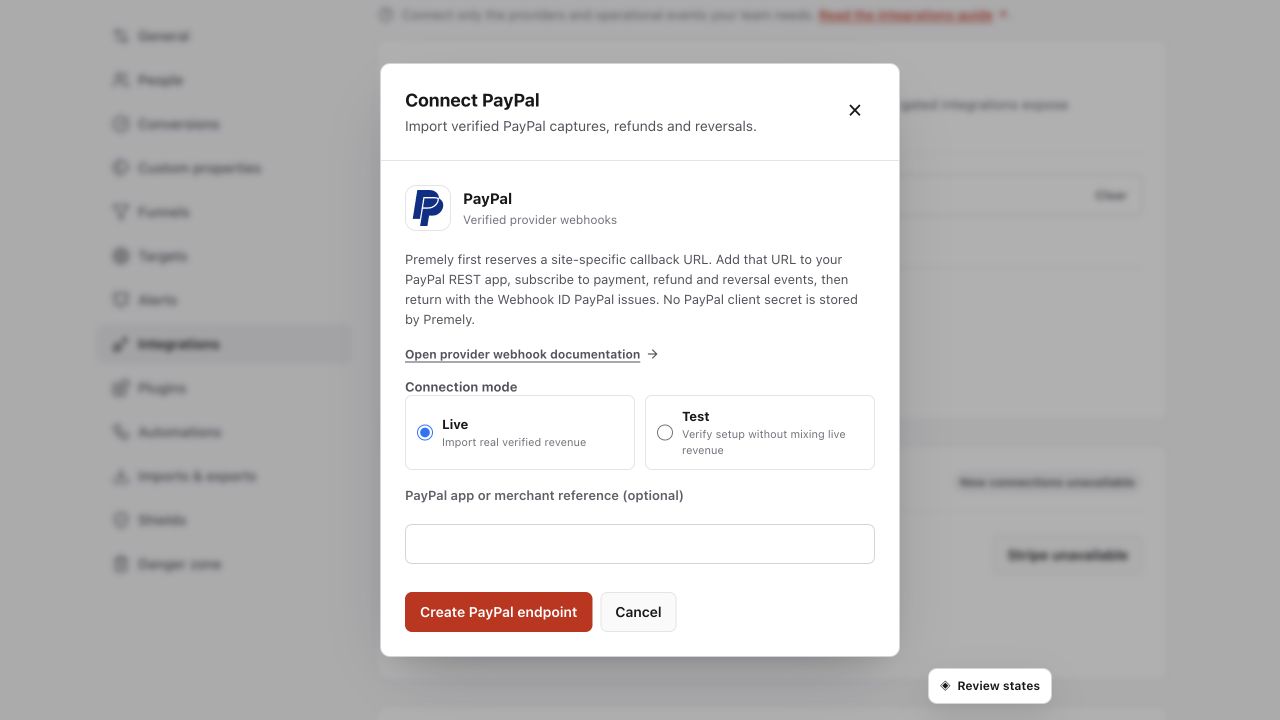
Connect the intended PayPal environment and use the displayed webhook details for that app. Shown in Premely with disposable demo data; your values will differ.
- 2
Create the PayPal webhook
In the PayPal Developer Dashboard, open Apps & Credentials, choose Sandbox or Live, and open the REST app used by your checkout. In that app's Webhooks section, choose Add Webhook and paste the reserved Premely Webhook URL. Do not create a separate REST app just for analytics.
- 3
Select supported events
Select
PAYMENT.CAPTURE.COMPLETED,PAYMENT.CAPTURE.REFUNDEDandPAYMENT.CAPTURE.REVERSED, then save the webhook. Copy the Webhook ID shown for the saved URL, not the REST app's Client ID. - 4
Activate with the Webhook ID
Return to Premely, paste the copied ID into PayPal Webhook ID and choose Activate PayPal revenue. Do not enter your Client ID or Client Secret; Premely does not need either one for this connection.
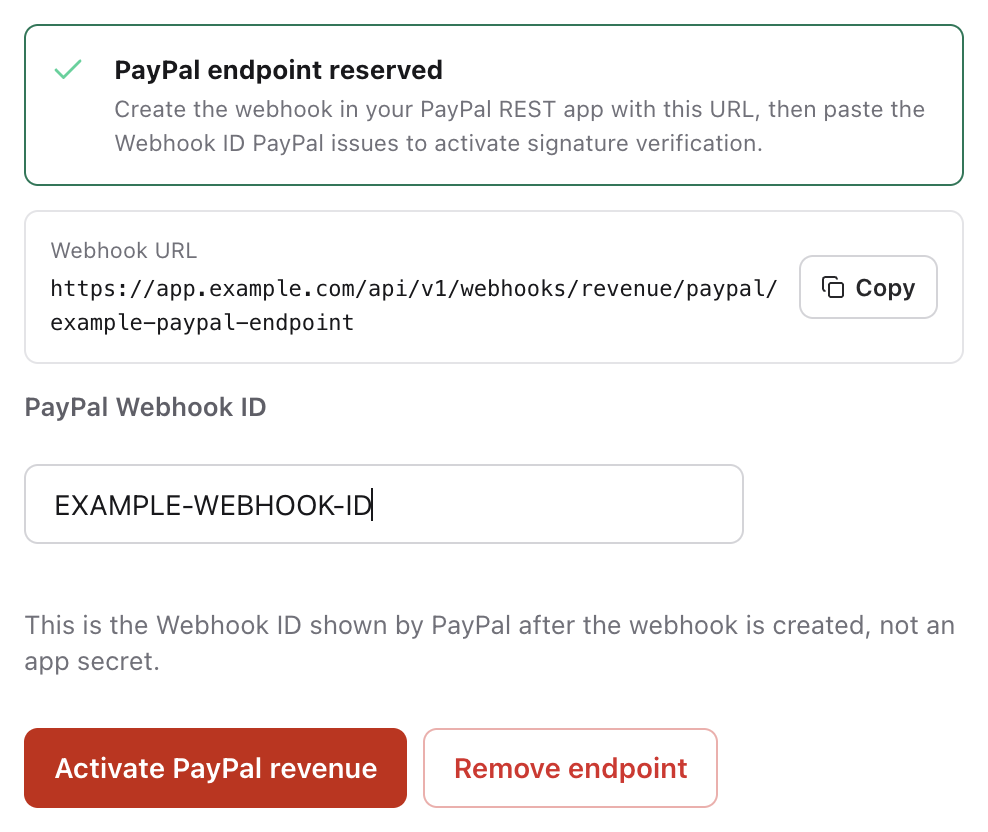
Paste the Webhook ID from the matching PayPal REST app. Do not enter its Client ID or Client Secret. EXAMPLE-WEBHOOK-ID is not a usable PayPal value. Captured from the real Premely interface using disposable local-review values. Example URLs and credentials cannot be used for a real connection.
- 5
Verify the first event
For Test, complete a sandbox payment through the checkout that uses the selected REST app. Then reopen PayPal in Premely and check Last verified event. PayPal's public webhook simulator is not a substitute: its mock events do not belong to your REST app and use a different Webhook ID. For Live, wait for a supported live payment, refund or reversal.
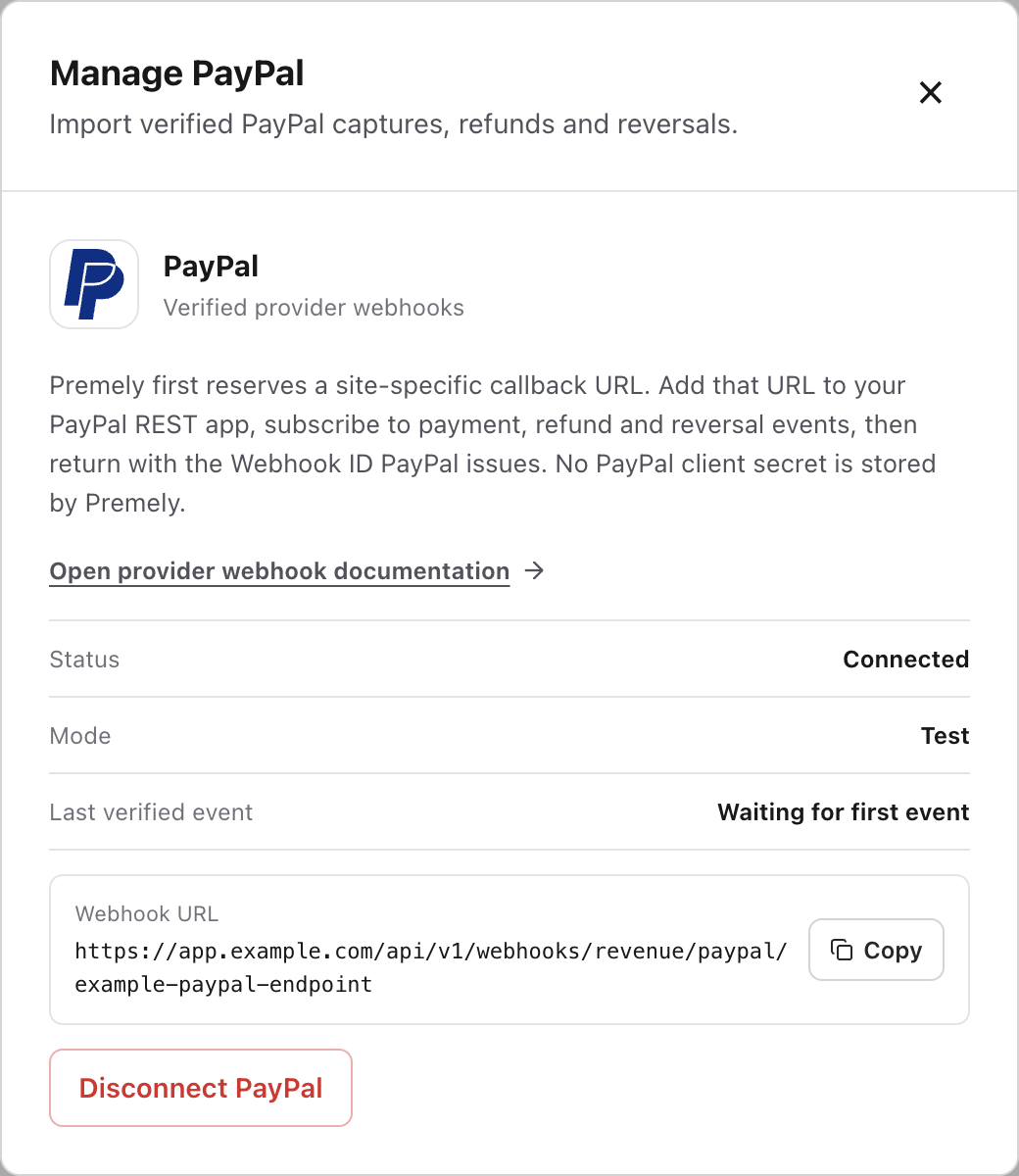
Check Last verified event after a supported payment from the matching REST app. This example has no received event; Connected alone does not prove delivery. Captured from the real Premely interface using disposable local-review values. Example URLs and credentials cannot be used for a real connection.
What to expect
Check the site and environment
Each connection sends revenue to one Premely site. A Test connection does not verify a Live connection. Keep the provider environment and the Premely mode the same throughout setup.
Currencies stay separate
Premely does not silently combine or convert different currencies. Provider revenue appears in Revenue and Revenue / Visitor only in its valid currency context.
Revenue and visitor attribution are separate
A verified payment can appear in revenue without being linked to a visitor. Premely shows the visitor link only when the payment carries matching Premely attribution data.
Duplicate deliveries do not duplicate revenue
If the provider retries the same event, Premely does not count it as another payment.
The endpoint is inactive until configured
A reserved PayPal endpoint cannot accept events until the matching Webhook ID has been saved.
No PayPal client secret is stored
The Premely connection needs the public Webhook ID only. Keep REST app credentials in PayPal.
Useful ways to apply this
PayPal capture reporting
Review completed PayPal captures, refunds and reversals beside traffic and conversion reporting.