
Manage your workspace
Rotate a Premely site key
Replace a site's tracking key safely when the existing installation needs to be updated.
What it is
A site key connects one installed tracker to one Premely site. Rotation creates a replacement key and stops the current tracker key from accepting new events.
Why use it
Use rotation when a key needs to change, then update every active installation before you expect measurement to continue.
Before you start
- You need Editor, Admin or Owner access for the selected site.
- Know every active Premely installation for the site, including direct scripts, tag manager containers and plugins.
- Plan to copy the replacement key immediately. Premely shows its complete value only once.
How to use it
- 1
Open the selected site's settings
Open Site settings for the site whose tracker key needs to be replaced.
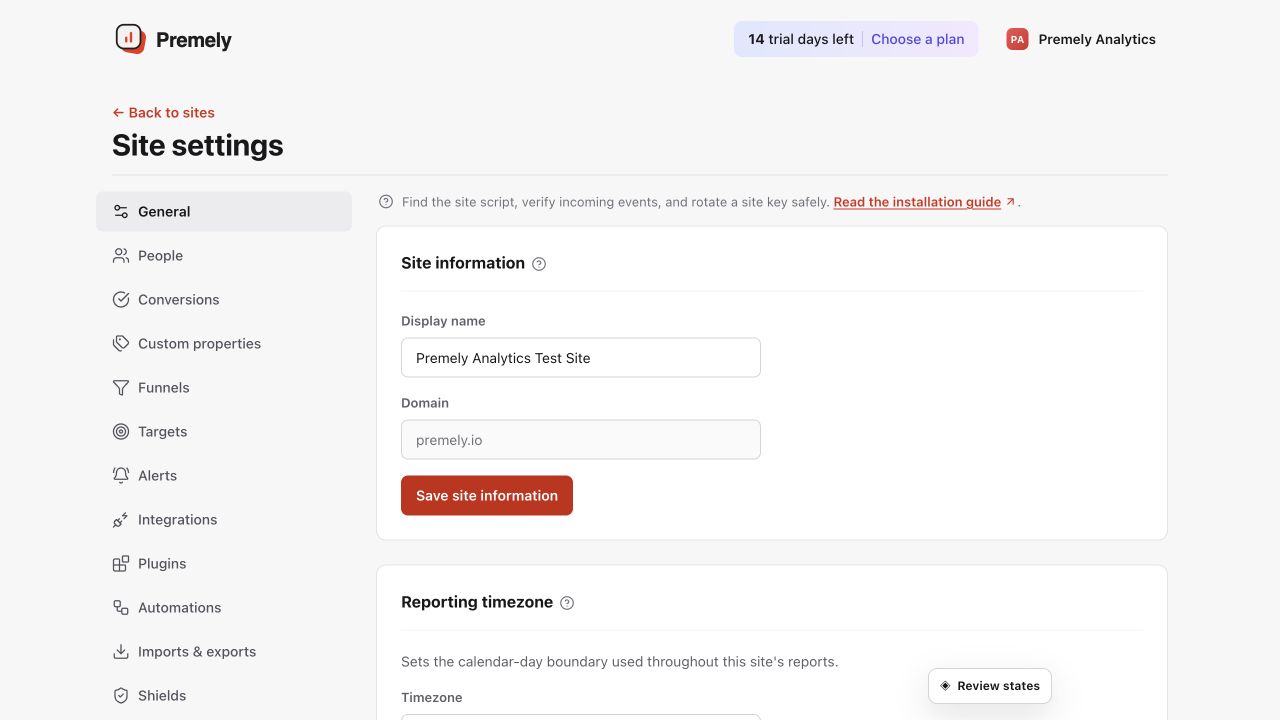
Confirm the selected site at the top of General settings before changing its controls. Shown in Premely with disposable demo data; your values will differ.
- 2
Rotate and copy the replacement key
Choose Rotate site key, confirm the action and copy the new value while it is displayed. Store it only where the person updating the installation can use it.
- 3
Update every active installation
Replace the key in the installation currently used by the site. Follow Install tracking for a direct script or the matching plugin guide for a guided path.
- 4
Publish the website change
Publish or deploy the updated installation before you try to verify it. A saved draft does not send website activity to Premely.
- 5
Verify a fresh visit
Visit the public site, then check the connection state and Realtime to confirm that activity is arriving again.
What to expect
The old key stops accepting new events
Rotation takes effect immediately. Reports can have a gap until each active installation has the replacement key and the updated site is published.
The complete replacement appears once
Copy the key as soon as it is shown. If it is no longer available, rotate again and repeat the installation update.
One site needs one active installation
Do not keep an old and new Premely install running together. Use one current tracking path for the selected site.
Useful ways to apply this
A site rebuild
Rotate and reinstall when a new build or platform move needs a clean, current tracking configuration.
An installation handover
Create a replacement key before handing the active implementation to the team responsible for the next release.