
Automations
Connect Microsoft Teams
Send selected Premely events to a Microsoft Teams Workflow webhook.
- Microsoft Teams

What it is
The Microsoft Teams destination posts an Adaptive Card to the Teams Workflow webhook you connect.
Why use it
Use Microsoft Teams when your team needs Premely signals to appear in an existing Teams workflow.
Before you start
- Create a Teams Workflow webhook for the channel where Premely messages should appear.
- You need owner or admin access in the Premely workspace.
How to use it
- 1
Choose Microsoft Teams
From Automation destinations, choose Microsoft Teams.
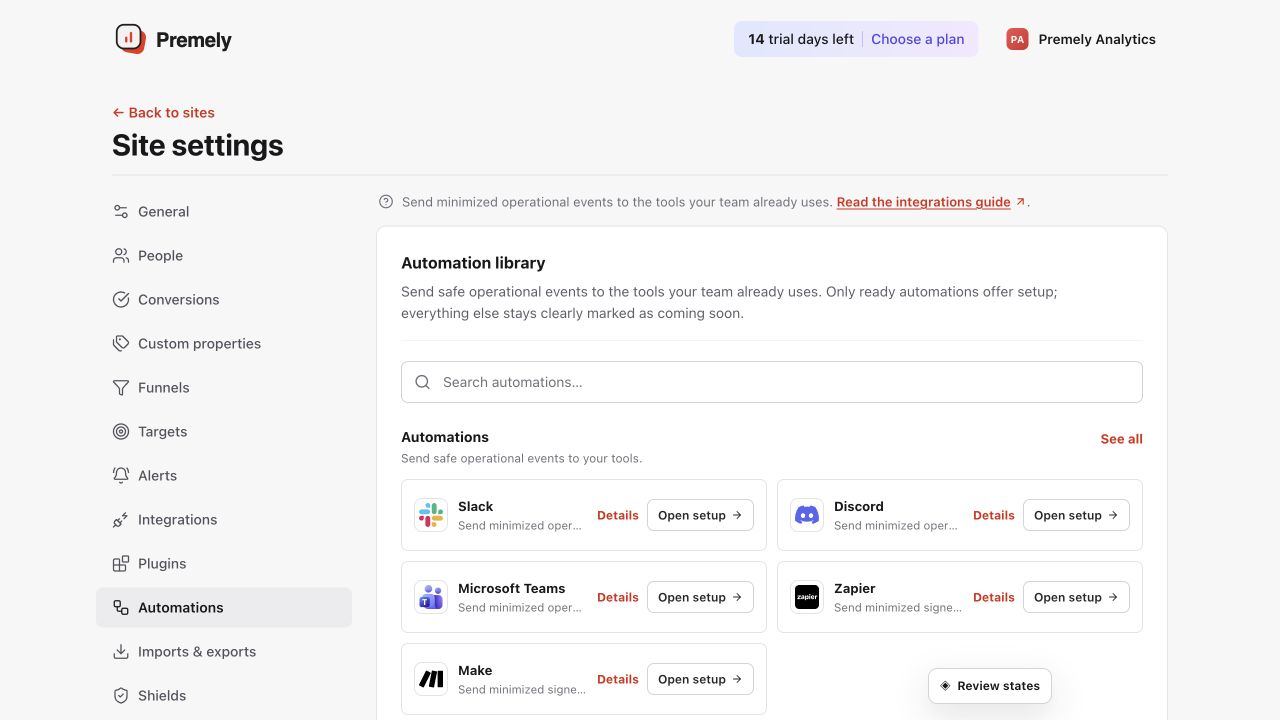
Choose Microsoft Teams, enter the workflow URL and test the selected events. Shown in Premely with disposable demo data; your values will differ.
- 2
Name the destination
Use a clear name such as
Growth team alertsso other admins understand the workflow. - 3
Paste the Workflow webhook URL
Copy the Workflow webhook URL from Microsoft Teams and paste it into Premely.
- 4
Select events and send a test
Save the selected events, send a test and confirm that the Adaptive Card reaches the correct channel.
What to expect
Use the provider-issued URL
The Teams Workflow webhook URL identifies the destination. Do not reuse a URL from another connection.
Keep the event list focused
Choose only events that the channel can act on. A small, relevant set is easier to notice and maintain.