
Learn analytics
Create an alert
Watch a supported metric and be notified when it crosses a useful threshold.
What it is
An alert checks a supported metric after a reporting window has completed. It is designed to draw attention to a change, not to replace regular analysis.
Why use it
Use alerts for changes worth investigating, such as an unusual drop in visitors after a site release.
Before you start
- Choose a metric and threshold that would change what your team does next.
- Do not treat an empty reporting window as a low-traffic signal. Premely does not create a false alert from missing data.
How to use it
- 1
Open Alerts
From Site settings, open Alerts and choose Create alert.
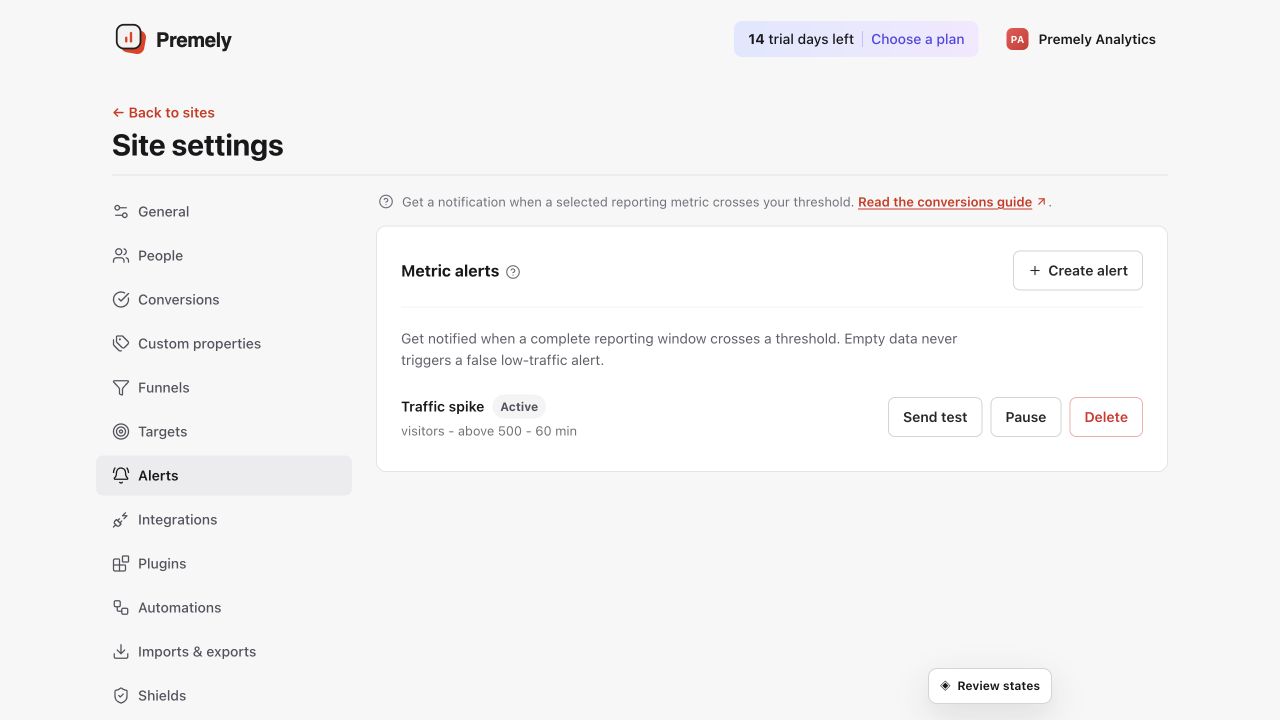
Review existing alert coverage before adding another notification for the selected site. Shown in Premely with disposable demo data; your values will differ.
- 2
Choose the metric
Select visitors, pageviews, events or bounce rate.
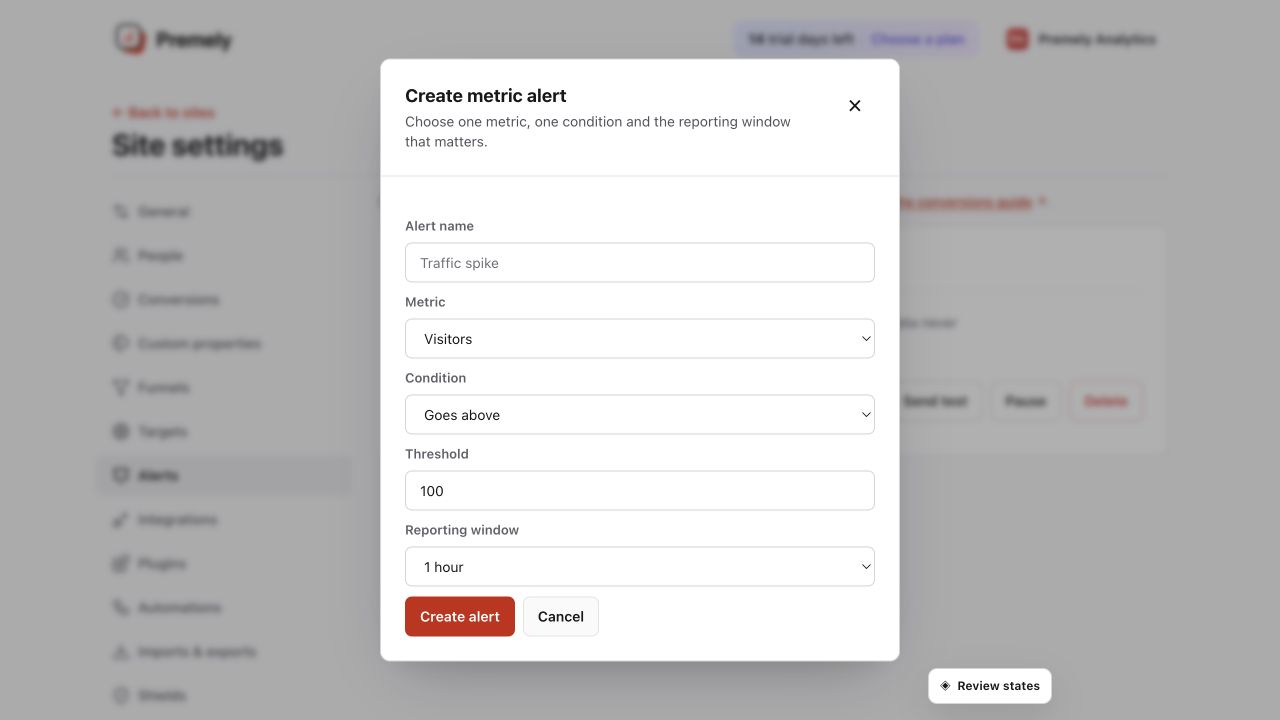
Create a focused alert with one meaningful condition and a reporting window that matches the decision. Shown in Premely with disposable demo data; your values will differ.
- 3
Set the condition and window
Choose above, below, increase percentage or decrease percentage, then use a 5, 15, 30 or 60 minute, 1 day or 1 week window.
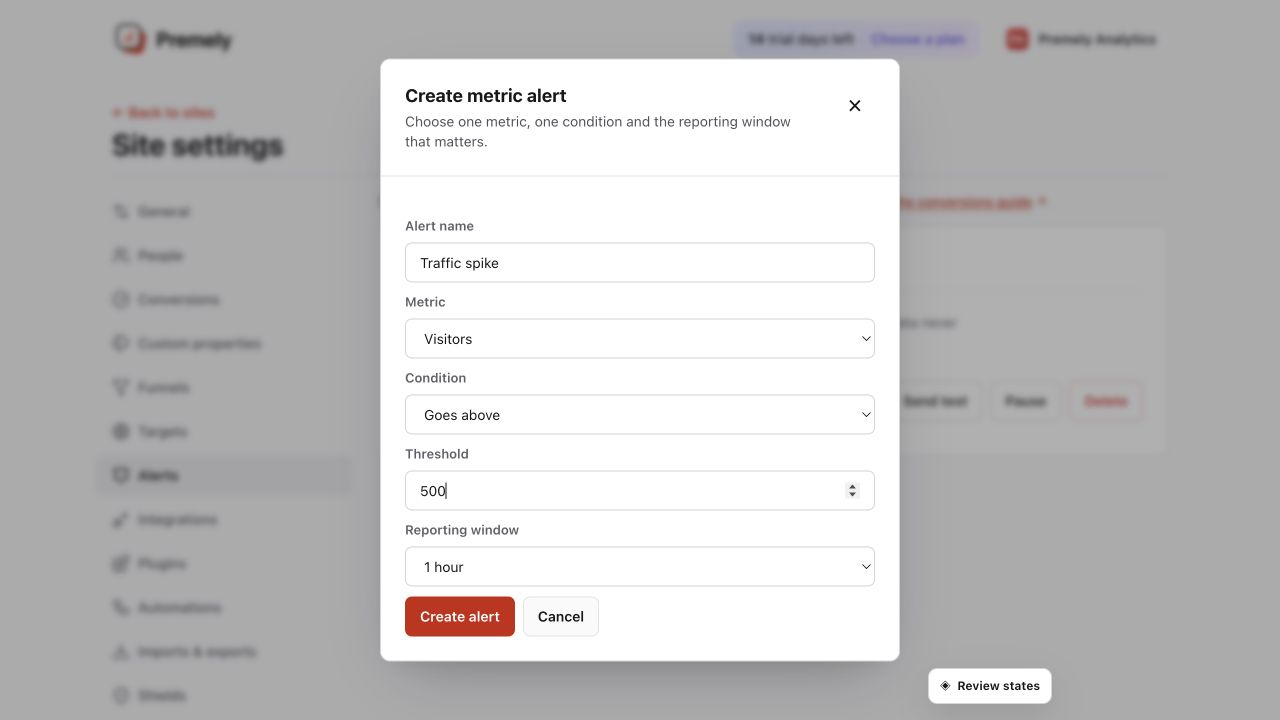
Check the full alert rule and notification destination before saving. Shown in Premely with disposable demo data; your values will differ.
- 4
Test and manage it
Use the available test control, then pause, resume or delete the alert when it no longer serves a clear decision.
What to expect
Test before relying on an alert
Use the test control after creating an alert. You can send alert events to a selected automation destination.
Fewer, better alerts work best
Start with one or two changes that your team will genuinely investigate, then adjust the threshold after you have seen normal variation.
Useful ways to apply this
Traffic drop after a release
Watch visitors over a day so your team can investigate a meaningful decline without reacting to every short fluctuation.
Campaign activity
Watch a higher-than-usual visitor or event level during a defined campaign period.