
Integrations
Connect revenue and search data
Review supported revenue sources and Google Search Console setup in Premely. Check provider availability before connecting Stripe or another source.
- Stripe
- Google Search Console


What it is
Premely, the revenue-first, privacy-first analytics platform, brings supported payment records and search performance into the selected site's reporting context. Provider connections have separate availability and permission requirements; a setup guide does not mean a provider is available to every account.
Why use it
Use this guide to choose the data source you want to connect, then follow its dedicated setup guide.
Before you start
- You need owner or admin access to manage provider connections.
- Connect a provider only to the site whose reports should use its data.
How to use it
- 1
Check integration status
Open Integrations in Site settings and find the data source you want to connect. Use its provider guide for the full setup, including the steps outside Premely.
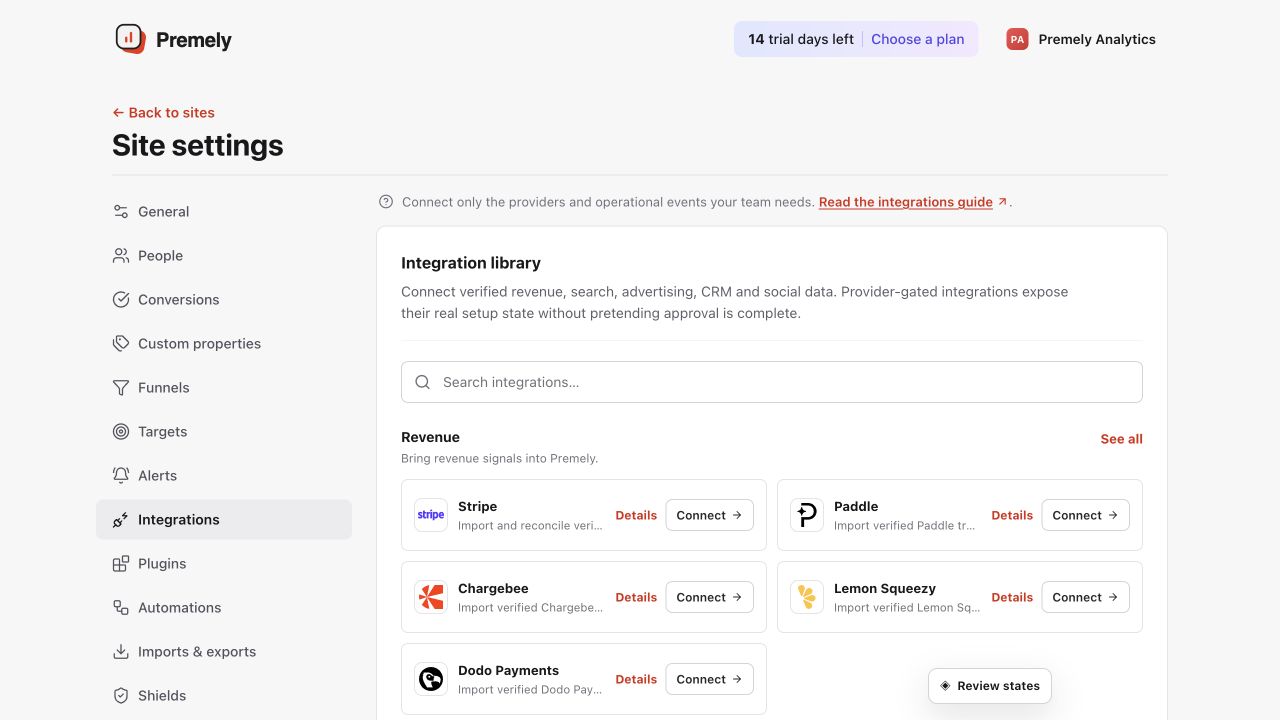
Open the connection that matches your provider and use its displayed status as the source of truth. Shown in Premely with disposable demo data; your values will differ.
- 2
Connect the right source
Check Stripe setup and availability or another supported revenue provider. A custom payment system can use the server-side Payment Events API. For search performance, follow Connect Google Search Console. Only continue when setup is available in your workspace.
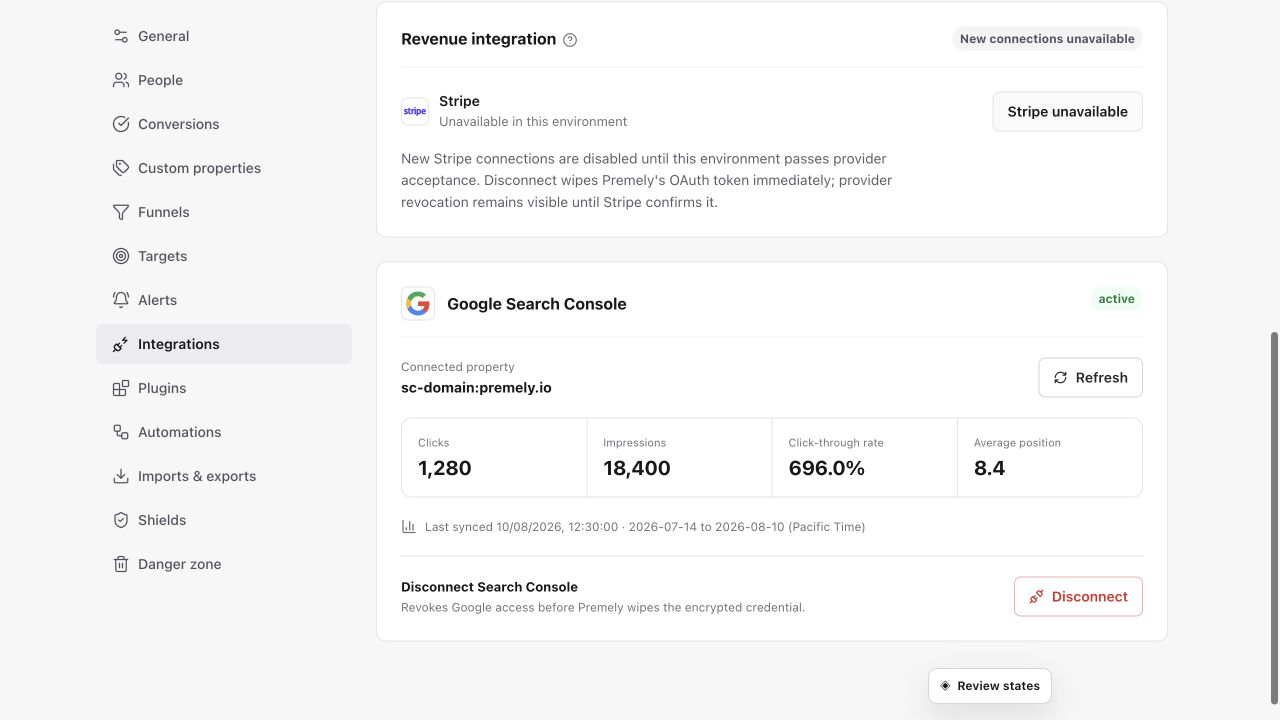
Choose the correct Stripe environment and authorize the intended account before relying on revenue data. Shown in Premely with disposable demo data; your values will differ.
- 3
Review the connection
After authorization, review the returned connection status and use the provider-specific refresh or disconnect controls when you need them.
- 4
Keep reporting context honest
Use revenue and search metrics only after the relevant connection shows its active status. Premely keeps mixed currencies separate rather than silently adding them together.
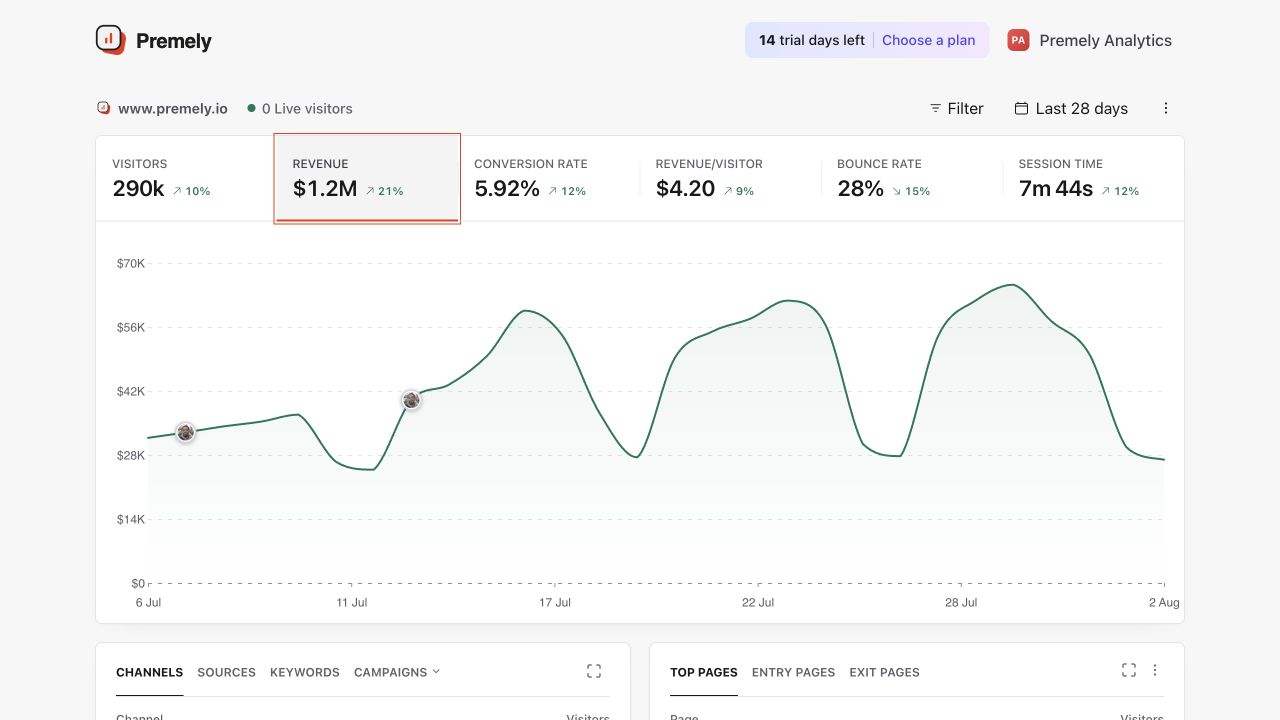
Read revenue together with transaction count, source and the selected reporting currency. Shown in Premely with disposable demo data; your values will differ.
What to expect
Stripe is read-only
Premely reads authorised Stripe data. It does not create charges, issue refunds or change Stripe settings.
Search Console starts with a selected property
Choose the property that matches the site. The initial sync imports the most recent 28-day view of clicks, impressions, CTR and position.
Useful ways to apply this
A combined acquisition review
Use search performance, traffic and revenue context together when you need to understand what is driving commercial outcomes.