
Manage your workspace
Manage your sites
Find, organise and switch between the websites in your workspace.
What it is
The Sites area is the home for each website in a workspace. It keeps site context separate while making it quick to move between properties.
Why use it
Use it when you manage more than one website, need to check connection state or want to open the settings for a specific site.
Before you start
- Choose the correct workspace first. Site permissions follow the workspace and your role.
- Plan limits can affect how many sites a workspace can add.
How to use it
- 1
Find a site
Use search when you know the site name or domain. Sort the list by recent activity, connection status or name when you need a broader view.
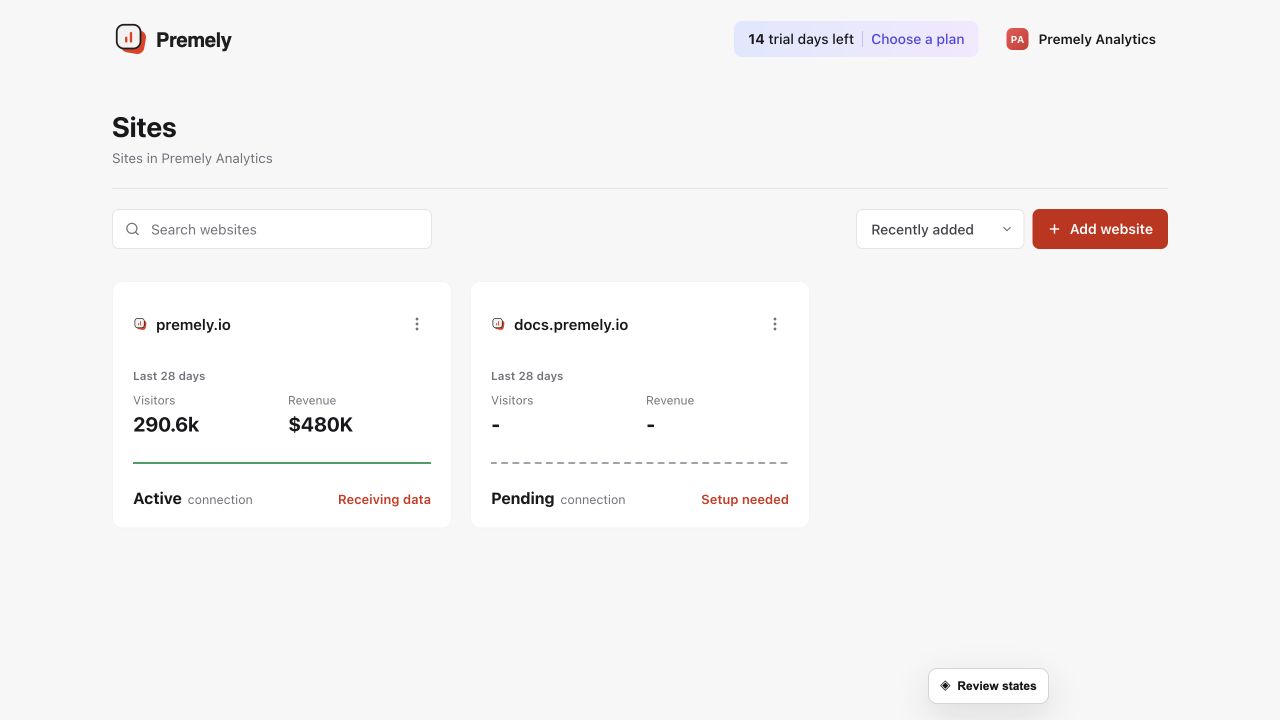
Select the exact site and confirm its connection status before changing site-specific settings. Shown in Premely with disposable demo data; your values will differ.
- 2
Open its context
Select a site to review its connection status, setup state and site-specific settings.
- 3
Choose the reporting timezone
Use the site settings to choose London, UTC, New York, Los Angeles or Singapore when one of those timezones matches the team’s reporting day.
- 4
Switch deliberately
Check the selected site before acting on a report, goal, alert or export. Those actions belong to the current site context.
What to expect
Connection status needs attention
Use a disconnected or waiting status as a prompt to review installation, not as proof that a site has no visitors.
Domains are not renamed here
The public domain stays read-only after site creation. Update the display name when you need a clearer internal label.
Useful ways to apply this
A brand portfolio
Keep each public domain in its own site context so reports and access are not mixed.
A regional reporting day
Choose the reporting timezone that matches the calendar your team uses for site decisions.