
Manage your workspace
Manage team access
Invite people and choose the level of access that matches their work.
What it is
Team access keeps the people, roles and sites in a workspace organised. Roles control what someone can view or manage.
Why use it
Use it when a teammate needs access to reports, setup controls or workspace administration.
Before you start
- Check your workspace role. Owners and admins manage members, while viewers are read-only.
- Invitations count towards the workspace seat use, including invitations that have not yet been accepted.
How to use it
- 1
Open Team
Choose Team from the workspace navigation to view current members, roles and pending invitations.
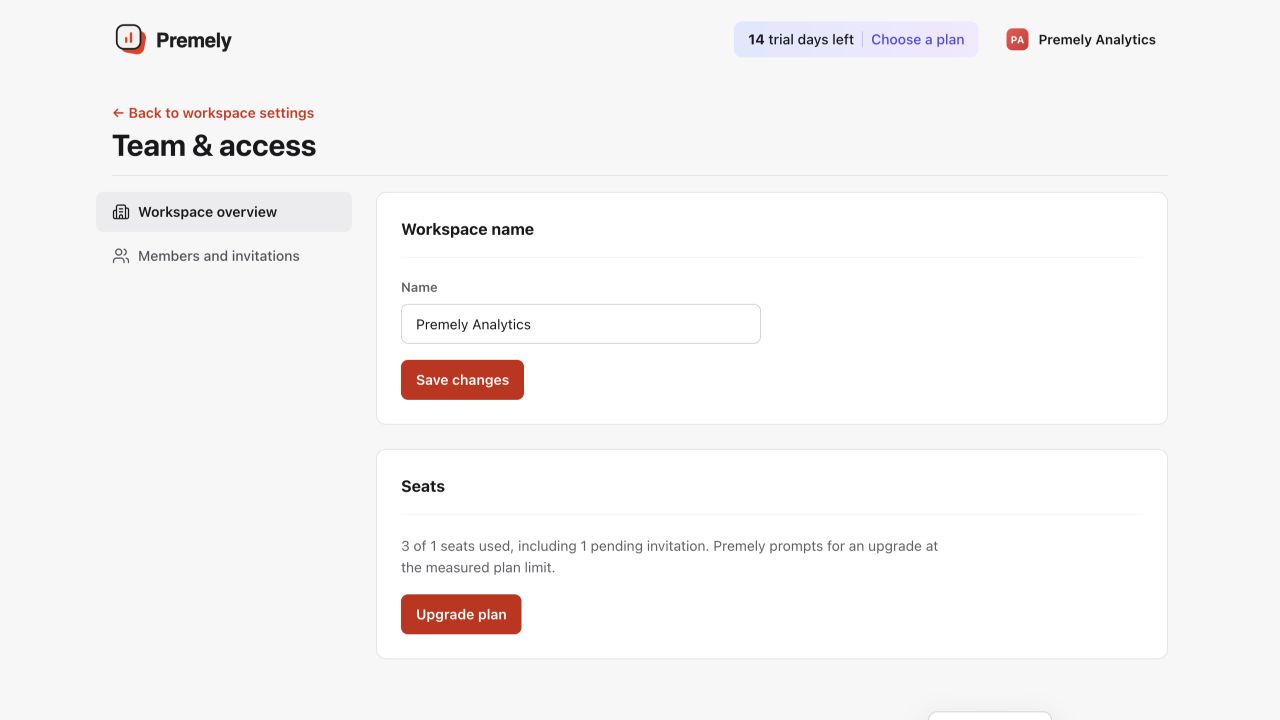
Invite only the required person and assign the least-privileged role that supports their work. Shown in Premely with disposable demo data; your values will differ.
- 2
Invite the person
Enter the recipient and choose Viewer, Editor or Admin. An owner can assign another owner when that level of responsibility is appropriate.
- 3
Choose site access where needed
For Viewer and Editor invitations, choose All websites or Selected websites when you need to limit which sites a teammate can work with.
- 4
Review access after acceptance
Check the member list when the invitation has been accepted, then confirm that the person has only the access they need.
- 5
Maintain the workspace
Resend or revoke a pending invitation, change a role, remove a member or leave the workspace when responsibilities change.
What to expect
Roles have different purposes
Viewers read analytics. Editors manage analytics setup. Owners and admins manage members and workspace controls.
Invitations use a seat
A pending invitation counts towards workspace seat use until it is accepted, revoked or removed.
Site access can limit the working area
When Viewer or Editor access is limited to selected websites, that person can work only with the sites chosen for them in the workspace.
Useful ways to apply this
A marketer needs reports
Use Viewer access when someone only needs to read analytics.
A developer owns installation
Use Editor access when someone needs to manage site setup, goals or other analytics controls.