
Manage your workspace
Switch workspaces
Move between the workspaces you belong to without mixing sites, people or reporting context.
What it is
A workspace is the boundary for its members, sites, plan and shared controls. The workspace switcher lets you choose which workspace the app is showing.
Why use it
Use it when you work across more than one business, client or team and need to make sure every action applies to the right workspace.
Before you start
- You need to be a member of more than one workspace before the switcher is shown.
- Check the workspace name and role before you edit site, member, billing or data controls.
How to use it
- 1
Open the workspace switcher
Open the workspace control in the app navigation. It shows the currently selected workspace before you make a change.
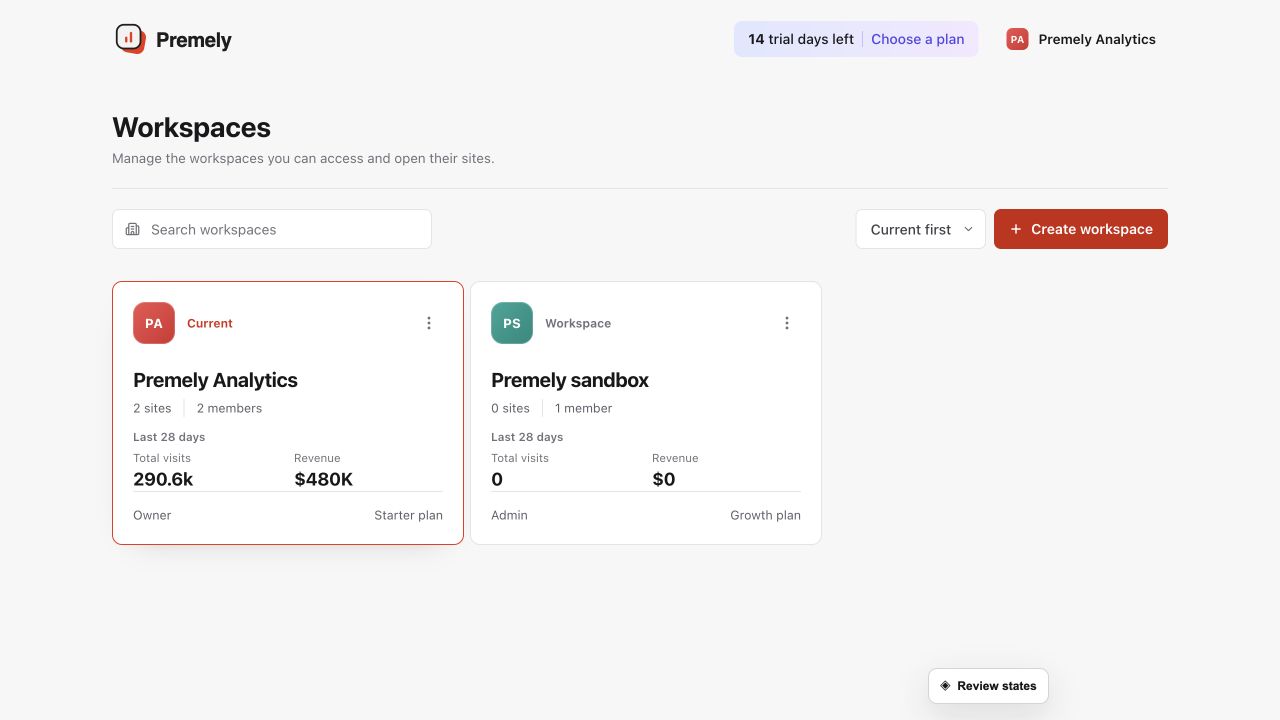
Choose the intended workspace before changing its sites, team or developer access. Shown in Premely with disposable demo data; your values will differ.
- 2
Choose the workspace by name
Select the workspace you want to open. Premely shows the role you have in each workspace so you can anticipate which controls are available.
- 3
Confirm the site context
Open Sites and choose the site you intend to review. A site and its reports always belong to the selected workspace.
- 4
Continue your task
Return to the dashboard, Site settings, Team or Settings after the workspace and site context are correct.
What to expect
Data stays separated
Switching workspace changes the sites, members, plan and settings you can see. It does not merge or move data between workspaces.
Your role can change
You can have a different role in each workspace. A control available in one workspace may not be available in another.
Useful ways to apply this
A consultant or agency
Move from one client's workspace to another before you review reports or make a site change.
Separate brands
Keep each brand's sites, team access and plan context distinct while using the same account.