
Plugins
Install the HTML tracking snippet
Add the generated Premely script to your shared site head and verify the live connection.
What it is
The HTML tracking snippet is the universal way to install Premely on a website. Premely generates the site-specific script in your workspace, so the connection stays tied to the right site.
Why use it
Use this path for a custom website or when your platform has a shared header area but no dedicated Premely plugin.
Before you start
- Create the site in Premely first, then open its installation instructions.
- Check that another Premely script, SDK or Google Tag Manager tag is not already active on the site.
How to use it
- 1
Copy the generated script
From Site settings, open Installation and copy the exact
scriptgenerated for this site.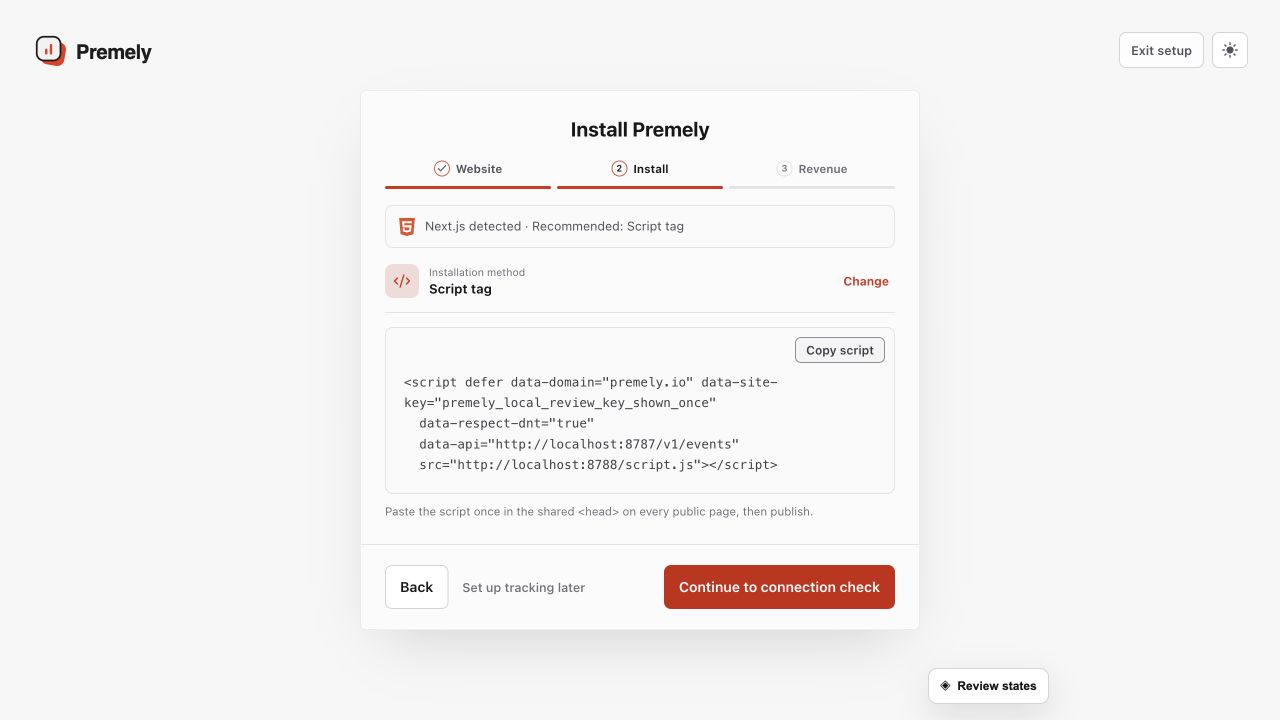
Copy the generated script into the shared head once, publish the site and verify the connection. Shown in Premely with disposable demo data; your values will differ.
- 2
Add it to the shared head
Paste the script once in the website's shared
headarea. Do not add the same script separately to individual pages. - 3
Publish the website
Save and publish the change so the script is available on the public domain visitors use.
- 4
Verify the installation
Open a public page in a new browser tab, then return to Premely and use the connection status to confirm the first event arrived.
What to expect
The script is site-specific
Use only the script generated for the selected Premely site. A site key belongs to one site context and should not be copied to another domain.
One shared placement is enough
A single script in the shared head covers every page that uses that shared layout. Adding it twice can duplicate pageviews.
Useful ways to apply this
A custom-built website
Use the shared application or layout head when a developer manages the website code directly.
A manual platform install
Use this universal snippet when a platform guide directs you to its site-wide code-injection field.