
Get started
Troubleshoot website tracking
Find and resolve the most common reasons a Premely site is waiting to connect or is not showing expected activity.
What it is
This guide helps you investigate a site that is not yet showing the analytics you expect after setup, a redesign or an installation change.
Why use it
Use it to check the visible connection state, the active installation and the first measured visit in a clear order before you change the site again.
Before you start
- Open the correct site and keep its public domain nearby.
- Use one active Premely installation. A script and plugin running together can duplicate pageviews.
- Do not rotate a site key as a first troubleshooting step. Rotate it only when the current key needs to be replaced.
How to use it
- 1
Check the connection state
Open the selected site's setup or connection state. A waiting state means Premely has not yet confirmed the first eligible event.
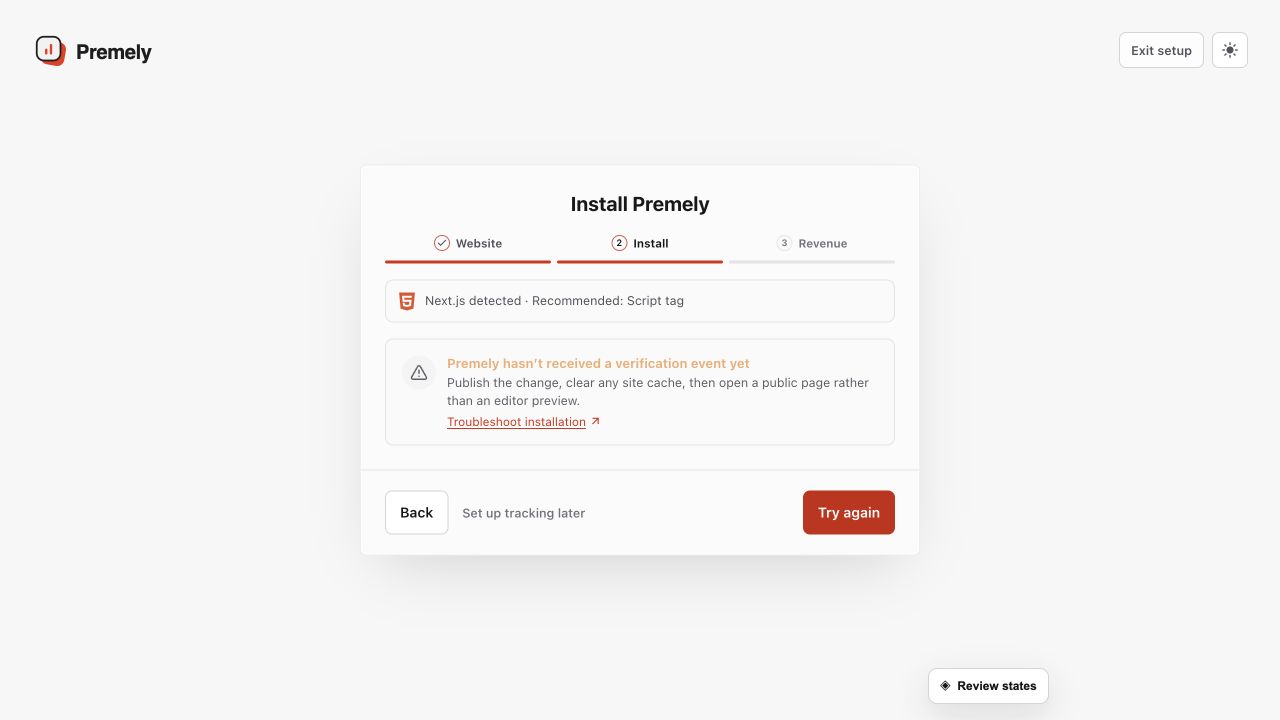
Check the public site, allow normal processing time and use Realtime to confirm the first visit. Shown in Premely with disposable demo data; your values will differ.
- 2
Visit the published public site
Open a published page under the configured domain, then return to Premely. Draft, preview and local URLs do not verify a public installation.
- 3
Confirm one installation path
Check whether the site uses the direct script, tag manager, SDK or a guided platform path. Remove an old Premely installation before you change methods. Use Choose an installation path when you are unsure.
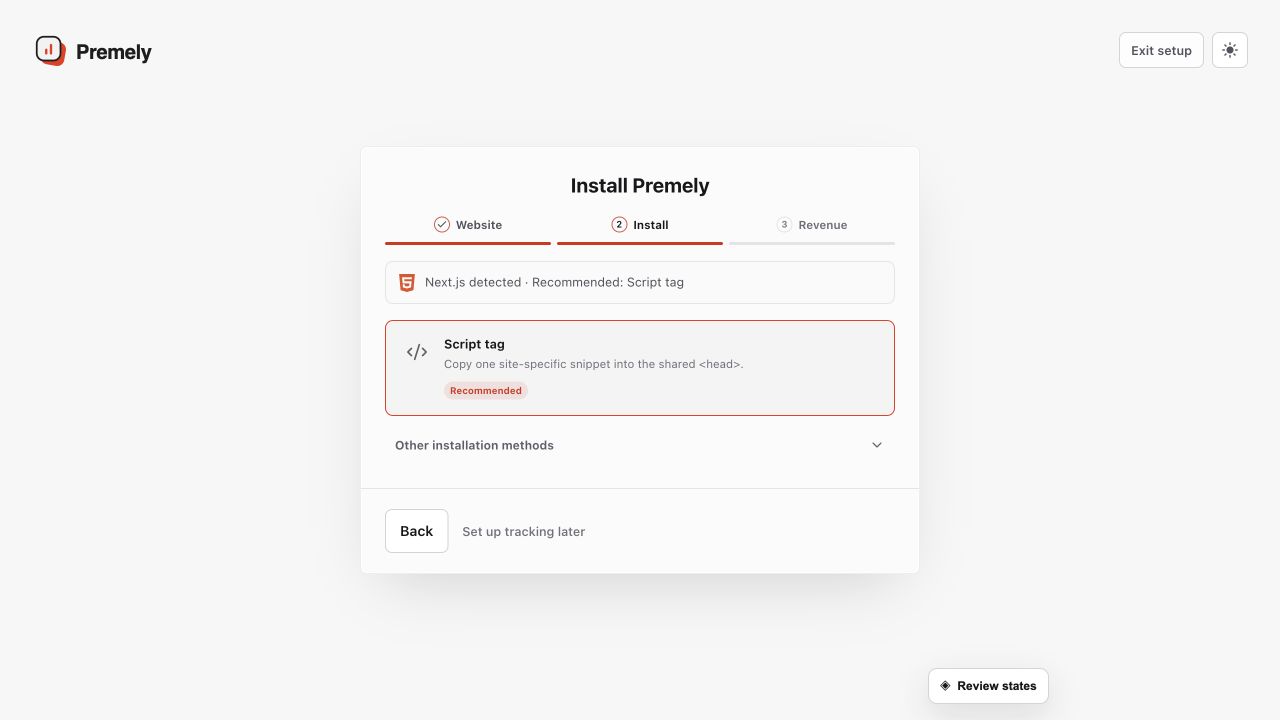
Choose one installation path for the site and avoid leaving a second Premely installation active. Shown in Premely with disposable demo data; your values will differ.
- 4
Check the site key and placement
Confirm that the active installation uses the key generated for this exact site and loads once on every measured page. If the key was replaced, update every active installation before you publish.
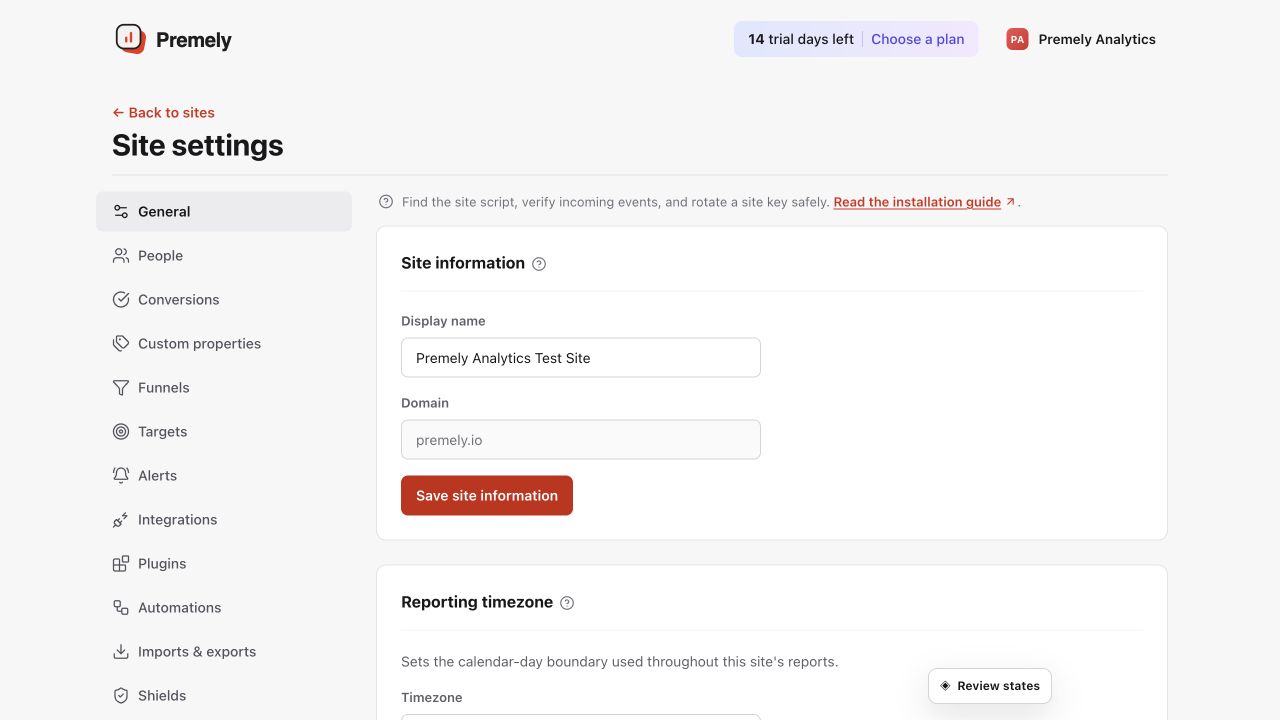
Rotate a key only when required, save the replacement once and update every active installation. Shown in Premely with disposable demo data; your values will differ.
- 5
Verify with Realtime
Choose Realtime, open the published site again and look for the visit or expected event. Then return to the selected site's connection state to confirm setup.
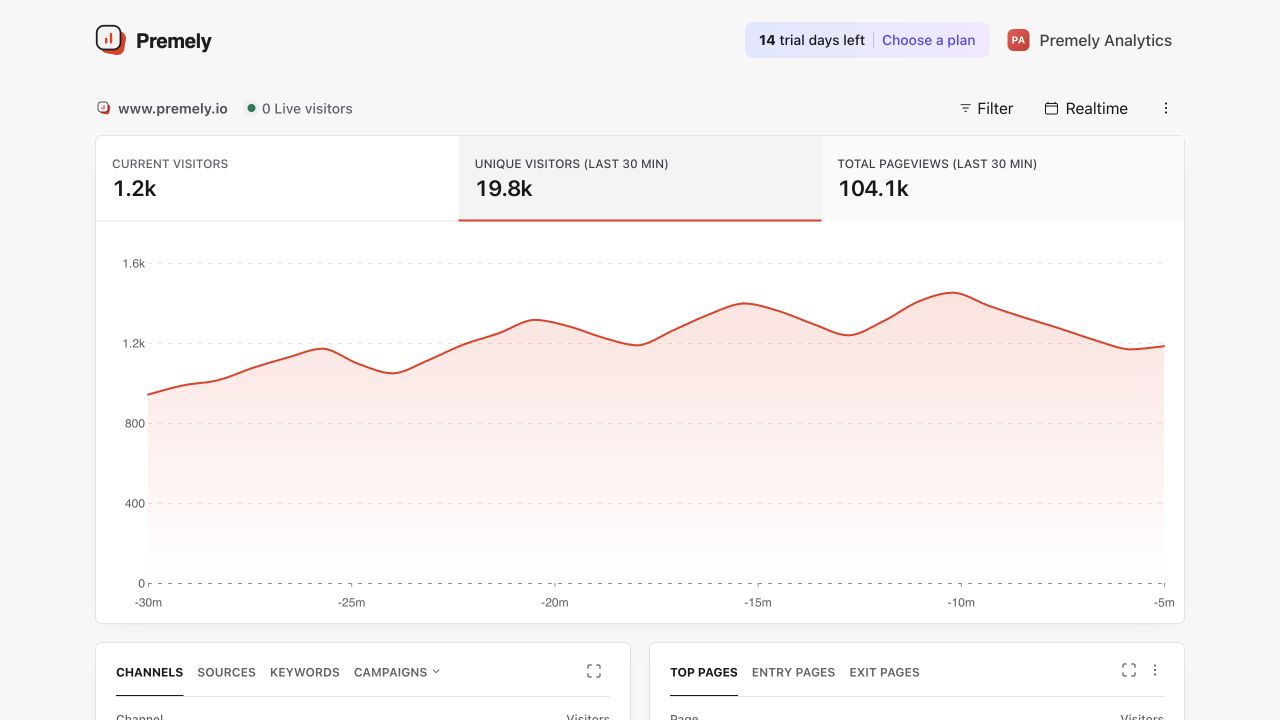
Use Realtime to verify a visit or event is arriving, then return to a longer period for analysis. Shown in Premely with disposable demo data; your values will differ.
What to expect
Waiting is not zero traffic
A waiting or disconnected state means Premely has not confirmed measurement. It is not evidence that the website has no visitors.
Duplicate installs distort reports
Two active Premely installations can create duplicate pageviews. Keep only one method active for a site.
A site uses its configured domain
A site is tied to its configured public domain. Add a separate site when another public domain needs its own reports.
Useful ways to apply this
A website redesign
Check the connection after a theme, platform, hosting or deployment change.
A new tracking method
Use this checklist after moving from the direct script to a guided platform path or tag manager.