
Automations
Connect Slack
Send selected Premely events to a Slack channel through an incoming webhook.
- Slack

What it is
The Slack destination posts safe operational summaries to the Slack channel connected to its incoming webhook URL.
Why use it
Use Slack when the team needs to see installation checks, usage signals, alerts, exports or revenue events in a shared channel.
Before you start
- Create an incoming webhook for the Slack channel where the team should receive Premely messages.
- You need owner or admin access in the Premely workspace.
How to use it
- 1
Choose Slack
From Automation destinations, choose Slack.
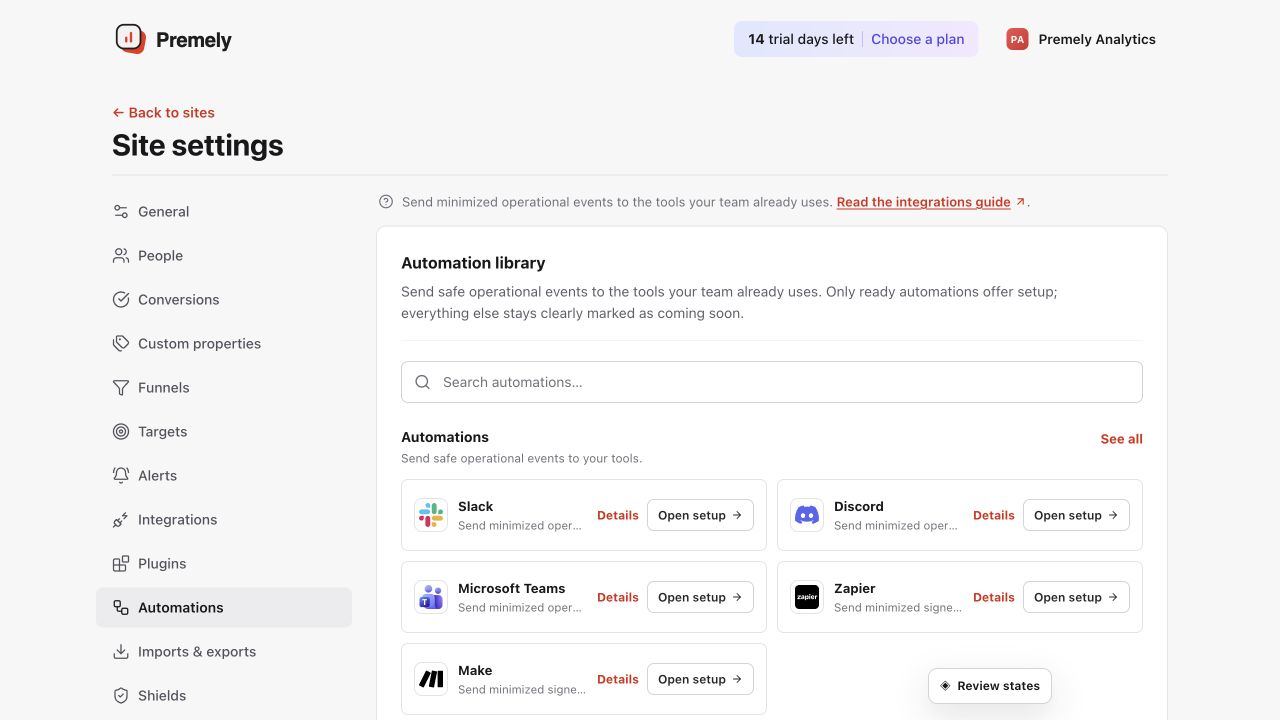
Choose Slack, enter the incoming webhook and send only the events the channel needs. Shown in Premely with disposable demo data; your values will differ.
- 2
Name the destination
Use a clear name such as
Marketing alertsso the team can identify the connection later. - 3
Paste the incoming webhook URL
Copy the incoming webhook URL from Slack and paste it into Premely. Treat the full URL like a password.
- 4
Choose events and send a test
Select the events the channel needs, save the destination and send a test before you rely on delivery.
What to expect
The URL is encrypted
Premely stores the provider URL encrypted and shows only its hostname after you save it.
You can pause a destination
Pause Slack while you change the workflow, then resume it after a new test succeeds.