
Integrations
Connect Stripe revenue
Check availability and read-only setup requirements for Stripe revenue in Premely. Provider approval and an active connection are required before reporting.
- Stripe

What it is
Premely has a read-only Stripe revenue connection for a selected site, subject to provider approval and environment availability. Where enabled, it reads authorised payment data; it does not create charges, issue refunds or process payments. Do not assume the integration is ready for your account merely because this guide exists.
Why use it
Use Stripe revenue alongside traffic reports and goals when you need to understand what is driving commercial outcomes.
Before you start
- You need owner or admin access in the Premely workspace.
- Use a Stripe account that has access to the revenue data for the selected site.
How to use it
- 1
Open the Stripe connection
From Site settings, open Connections and find Stripe. Check the current availability message. Continue only when Premely offers Connect; a coming-soon or provider-setup message means this connection is not ready. Do not create a developer app or paste secret keys into website code to bypass that state.
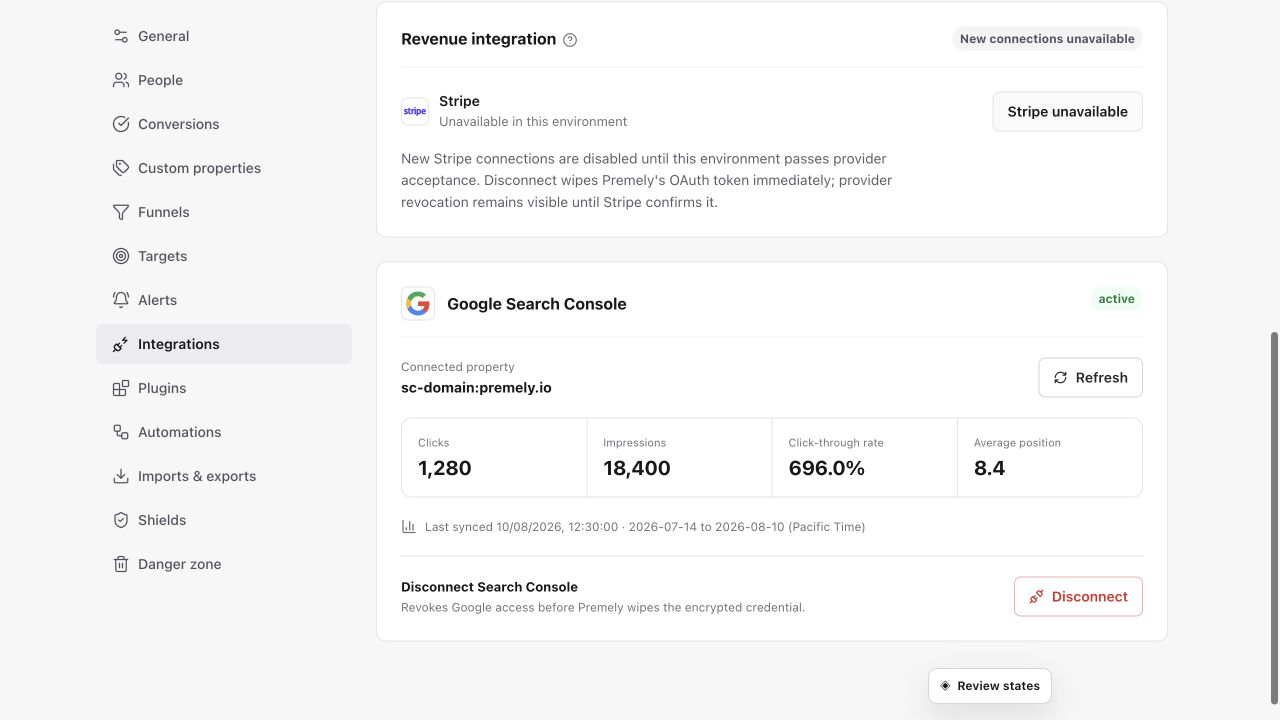
Choose the correct Stripe environment and authorize the intended account before relying on revenue data. Shown in Premely with disposable demo data; your values will differ.
- 2
Choose Connect Stripe
Start the connection from Premely. You will be sent to Stripe to review the requested read-only access.
- 3
Authorize and return to Premely
Complete the Stripe authorization, then return to the selected site in Premely and wait for the connection status to update.
- 4
Import and review revenue
Use Import 90 days when you want recent history in the report, then review the connection status and the revenue view in your dashboard.
What to expect
Revenue stays site-scoped
The connection belongs to the selected Premely site. Connect Stripe again when another site needs its own revenue context.
Currencies stay separate
Premely does not silently add mixed currencies together. Review each currency in its own context.
Useful ways to apply this
A paid signup journey
Review completed signups, acquisition sources and connected revenue together after a launch or campaign.