
Integrations
Connect Lemon Squeezy revenue
Verify Lemon Squeezy order and subscription revenue for one Premely site.
- Lemon Squeezy

What it is
The Lemon Squeezy connection receives supported signed store webhooks through a site-specific Premely endpoint.
Why use it
Use it when Lemon Squeezy orders and subscription payments are the source of truth for the site's revenue.
Before you start
- You need owner or admin access in the Premely workspace.
- You need permission to create a webhook in Lemon Squeezy.
- Choose Test or Live to match the Lemon Squeezy environment you are connecting.
How to use it
- 1
Create the Premely endpoint
Open your site's Settings, choose Integrations, find Lemon Squeezy and choose Connect. Select Test or Live to match your store mode and choose Create Lemon Squeezy endpoint.
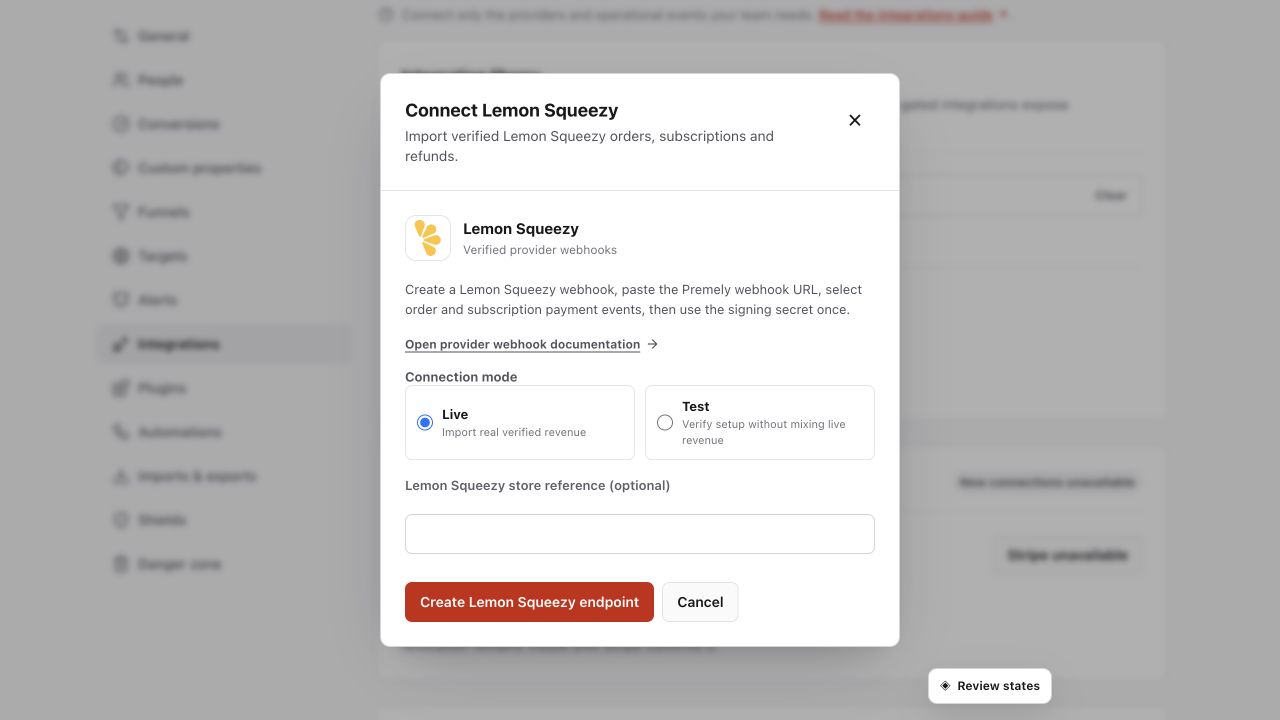
Use the generated endpoint and one-time signing secret for the matching Lemon Squeezy environment. Shown in Premely with disposable demo data; your values will differ.
- 2
Copy the webhook URL and signing secret
The confirmation shows Webhook URL and Signing secret. Use Copy beside each value and keep them available for the next step. The secret is shown only once. Do not use the example values in the screenshot, and do not put the secret in your website code.
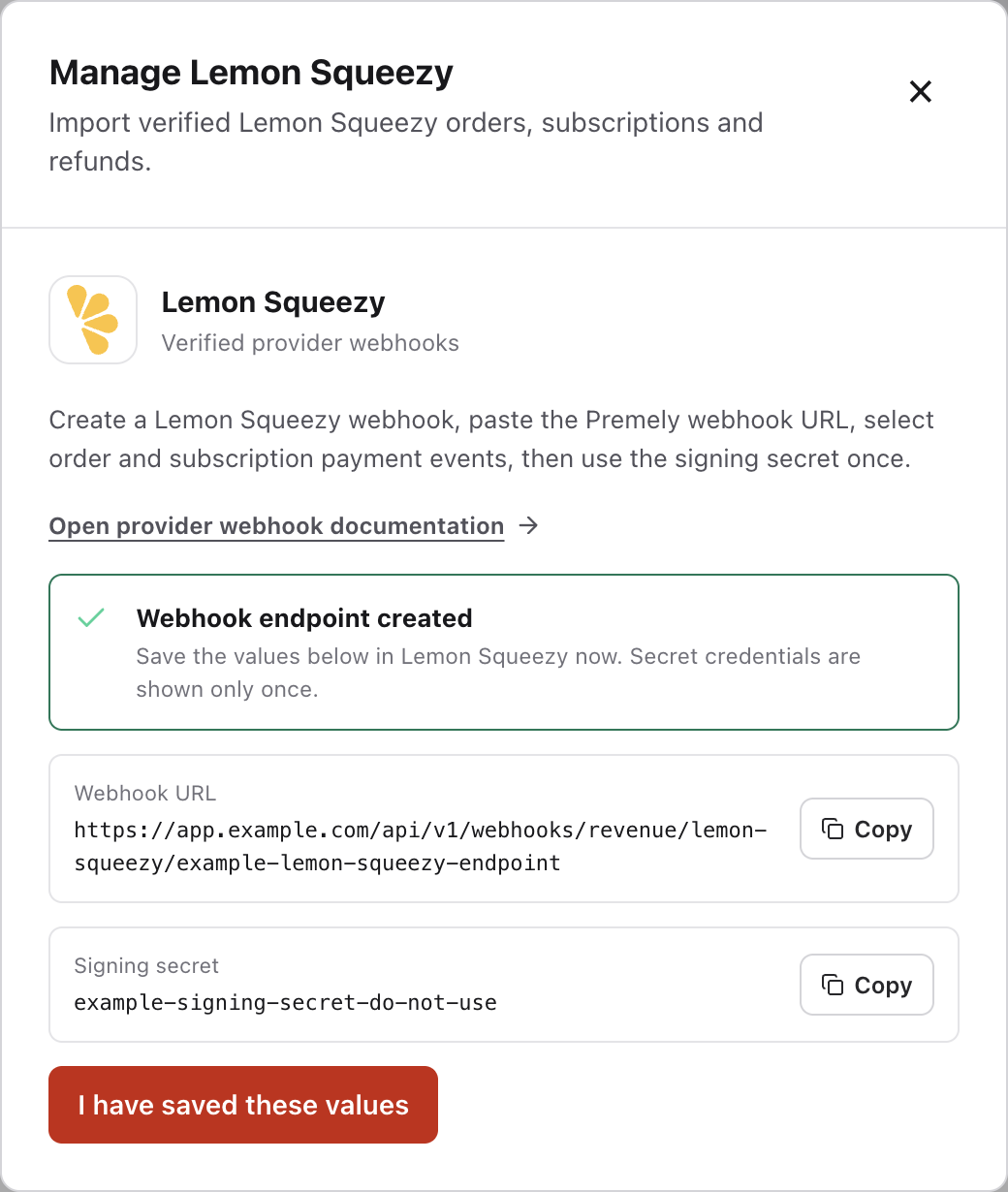
Copy both values before closing this dialog. The Signing secret shown here is an explicitly invalid example; use the value generated for your own site. Captured from the real Premely interface using disposable local-review values. Example URLs and credentials cannot be used for a real connection.
- 3
Add the Lemon Squeezy webhook
In Lemon Squeezy, open Settings, then Webhooks. Check Test mode matches the Premely connection, then choose the plus button beside Webhooks. The new form currently has the heading Edit Webhook. Paste your Premely Webhook URL into Callback URL and your Premely Signing secret into Signing secret. The URL control already shows https://; make sure the address contains that prefix only once.
Lemon Squeezy: create a webhook
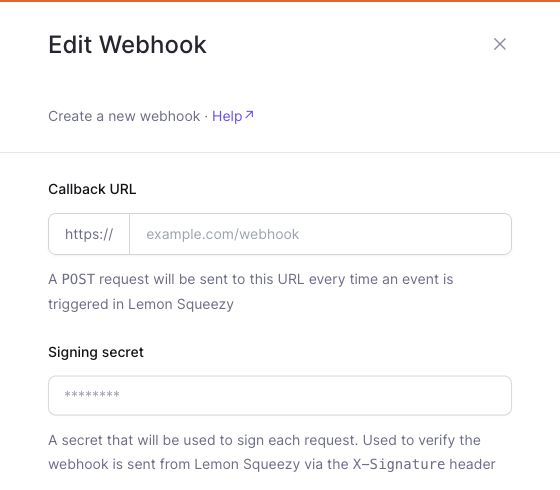
Use the plus button beside Webhooks. Lemon Squeezy labels the new form Edit Webhook, with Create a new webhook underneath. Enter your own Premely URL and secret; the fields shown here are empty.
Lemon Squeezy test dashboard · Captured 2026-08-27
- 4
Select supported events
Scroll to What updates should we send? Select only
order_created,order_refunded,subscription_payment_successandsubscription_payment_refunded, then choose Save Webhook. Return to Premely and choose I have saved these values after the webhook is saved.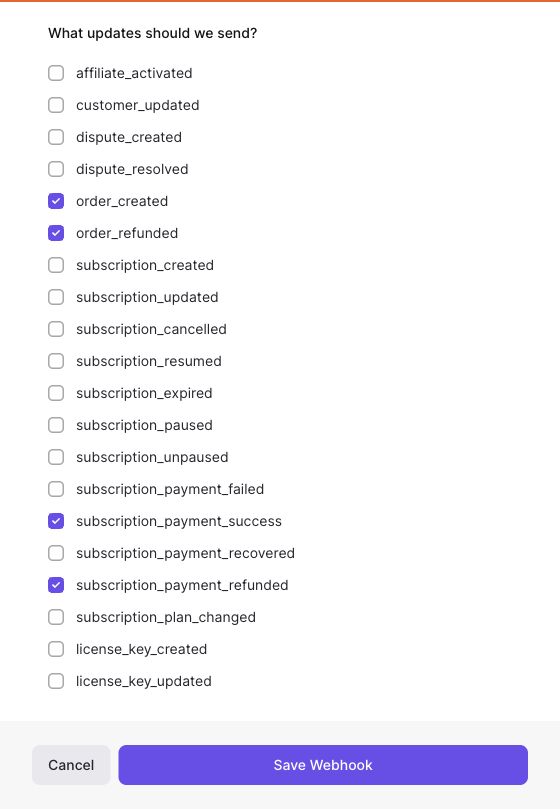
Select these four event names under What updates should we send?, then choose Save Webhook after entering your URL and secret. This capture is an unsaved form, not a new provider connection.
Lemon Squeezy test dashboard · Captured 2026-08-27
- 5
Send a supported test event
For a Test connection, open Store, then Orders in Lemon Squeezy and open an existing test order. Choose Simulate event, select
order_created, then choose Trigger event. If you do not have a test order, complete a checkout in the store's Test mode first. Test webhooks do not receive live orders. Do not refund an order just to test this connection.Lemon Squeezy: simulate test webhook events
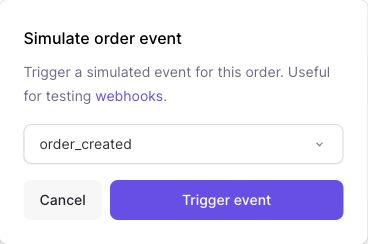
Open a test order, choose Simulate event, then select order_created. Trigger event sends it to your test webhooks. No event was triggered while taking this screenshot.
Lemon Squeezy test dashboard · Captured 2026-08-27
- 6
Verify the first event
In Premely, open the site's Integrations and choose Manage on Lemon Squeezy. Last verified event must show a timestamp instead of Waiting for first event. If it is still waiting, check the URL, signing secret, store mode and event selection. For a Live connection, verify after a supported live order or subscription payment arrives; the test simulator does not verify Live mode.
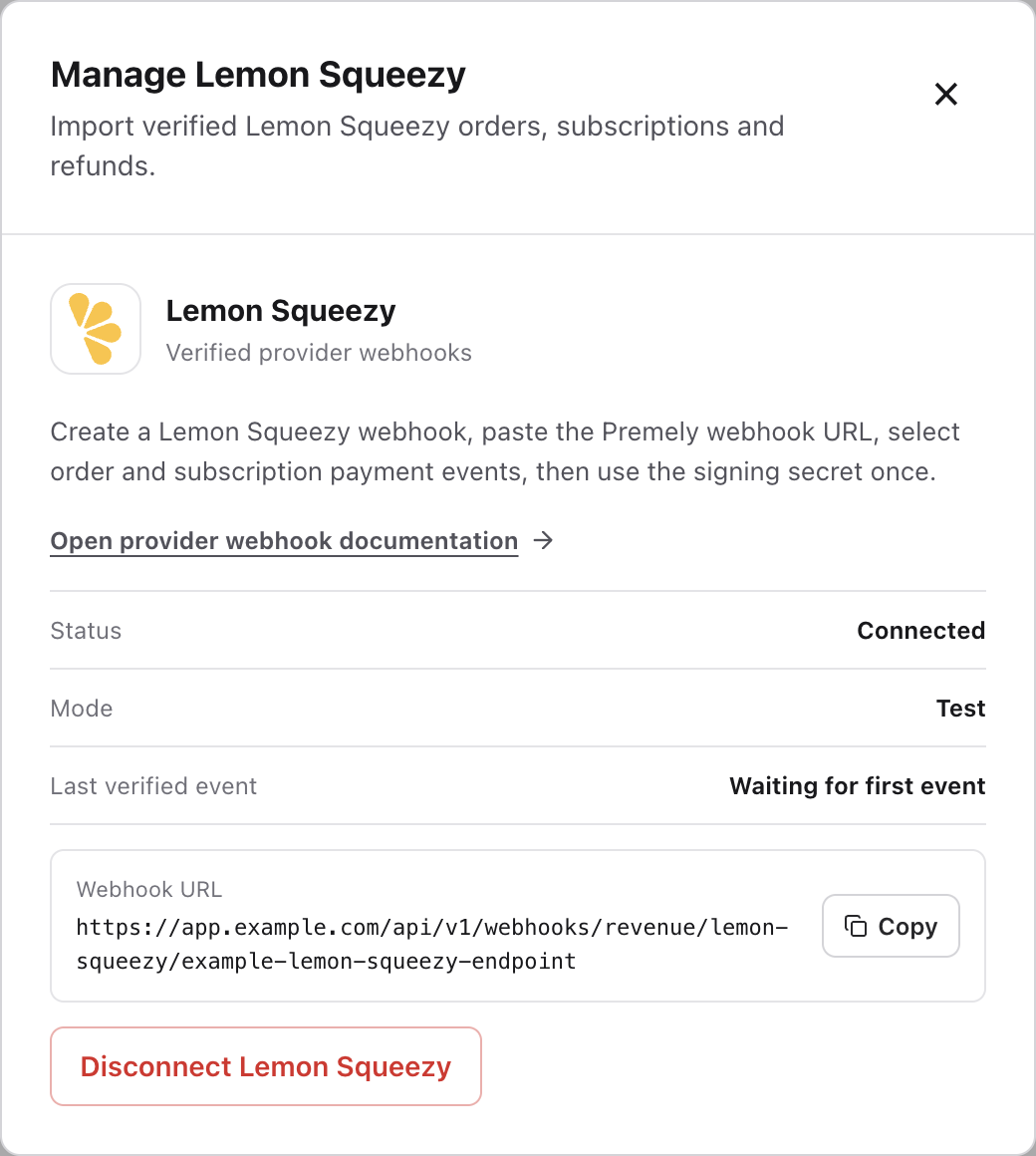
Look for a timestamp beside Last verified event after delivery. Connected on its own only confirms configuration. This example is still waiting for its first event. Captured from the real Premely interface using disposable local-review values. Example URLs and credentials cannot be used for a real connection.
What to expect
Check the site and environment
Each connection sends revenue to one Premely site. A Test connection does not verify a Live connection. Keep the provider environment and the Premely mode the same throughout setup.
Currencies stay separate
Premely does not silently combine or convert different currencies. Provider revenue appears in Revenue and Revenue / Visitor only in its valid currency context.
Revenue and visitor attribution are separate
A verified payment can appear in revenue without being linked to a visitor. Premely shows the visitor link only when the payment carries matching Premely attribution data.
Duplicate deliveries do not duplicate revenue
If the provider retries the same event, Premely does not count it as another payment.
Raw signatures are checked
Premely verifies X-Signature against the raw request body before accepting a supported event.
Useful ways to apply this
Digital product revenue
Review completed Lemon Squeezy orders and subscription payments beside traffic and conversion outcomes.