
Manage your workspace
Use account settings
Manage your personal profile, theme and current account security controls.
What it is
Account settings are your personal controls in Premely. They are separate from site and workspace settings so that a personal preference does not change a team’s analytics configuration.
Why use it
Use this page to update your displayed identity, choose a theme or review the available sign-in and session controls.
Before you start
- Use your own account settings. Workspace owners manage team access from Team, not from this page.
- Use a current, verified email address so sign-in and recovery messages can reach you.
How to use it
- 1
Open Settings
Open your account menu, then choose Settings.
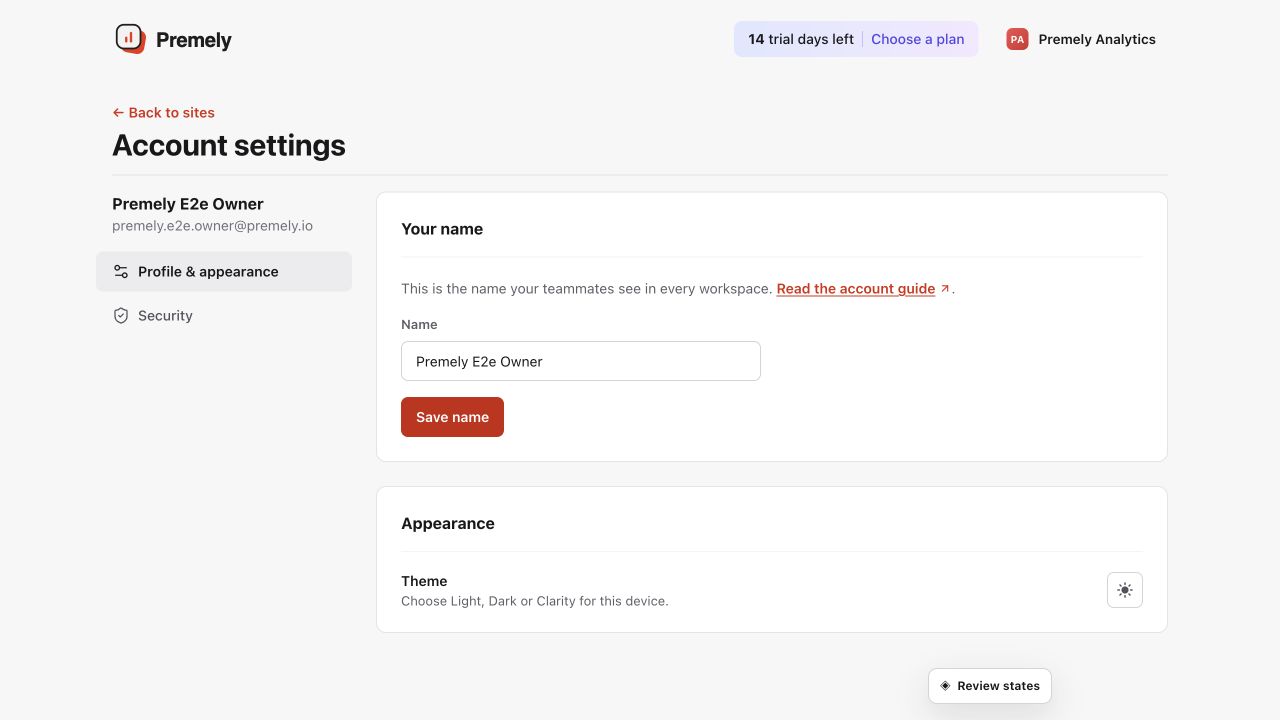
Use Account preferences for settings that follow your account rather than one website. Shown in Premely with disposable demo data; your values will differ.
- 2
Update your profile
Review the displayed name and keep it accurate so teammates can recognise who has access.
- 3
Choose a theme
Choose System, Light, Dark or Clarity dark based on the viewing environment you prefer.
- 4
Request a password reset when needed
Choose Forgot password from the sign-in screen and use the secure, single-use link sent to your account email to set a new password.
- 5
Sign out other devices
Use the session control in Settings when you no longer control a browser where your Premely account may still be open.
What to expect
Personal preferences stay personal
Changing your theme does not change the theme for everyone else in the workspace.
Recovery uses your account email
Use a current, verified account email so a secure, single-use password reset link can reach you.
Useful ways to apply this
A shared device
Sign out other devices when you no longer control a browser where your account may be open.
Low-light working
Choose Dark or Clarity dark when it makes the interface more comfortable to read.