
Get started
Install tracking
Add the generated Premely tracking code, then check that the site is connected.
What it is
Installation connects a site to Premely. The workspace generates the site-specific tracking details, so you never need to write or guess the tracking code yourself.
Why use it
Use this guide after creating a site and whenever you need to reconnect it after a website rebuild or key rotation.
Before you start
- Create the site in Premely first.
- Keep the site key private. Premely shows the complete replacement key only once after you rotate it.
How to use it
- 1
Open the installation step
From the site setup flow or Site settings, open the installation instructions for the site you created.
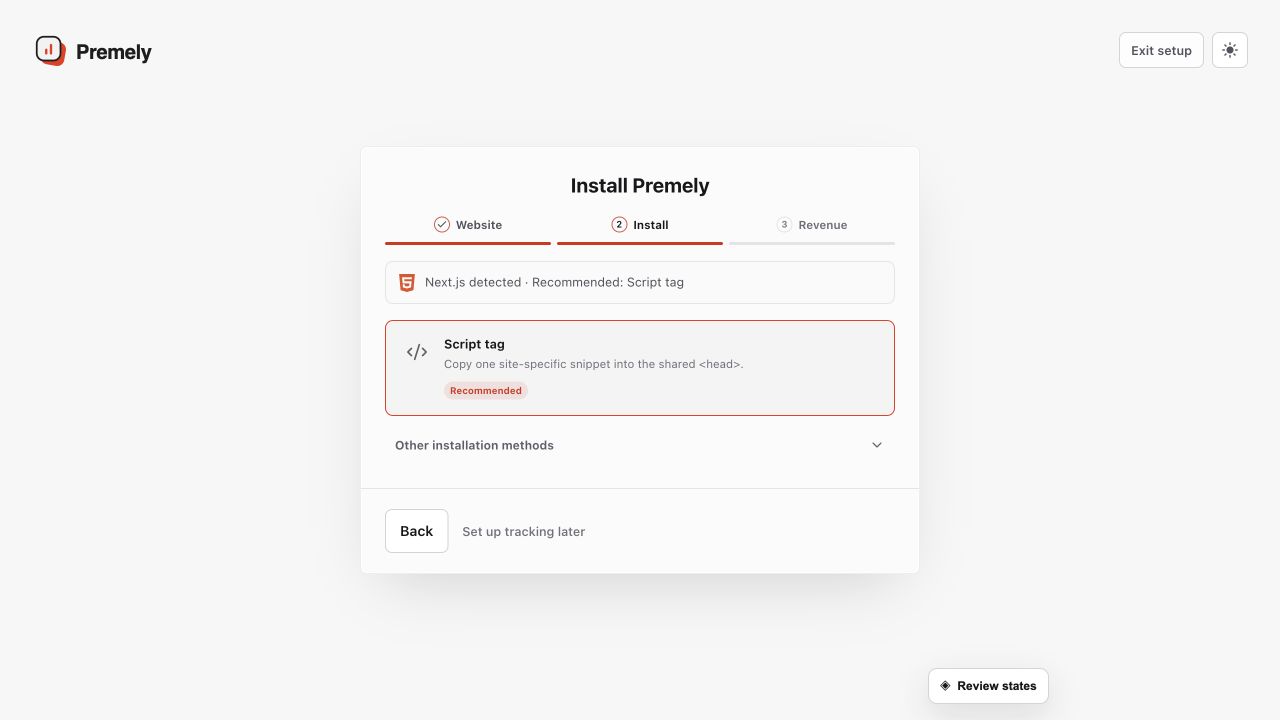
Choose one installation path for the site and avoid leaving a second Premely installation active. Shown in Premely with disposable demo data; your values will differ.
- 2
Copy the generated code
Copy the exact
scriptshown in your workspace. It contains the site-specific details Premely needs to recognise the connection.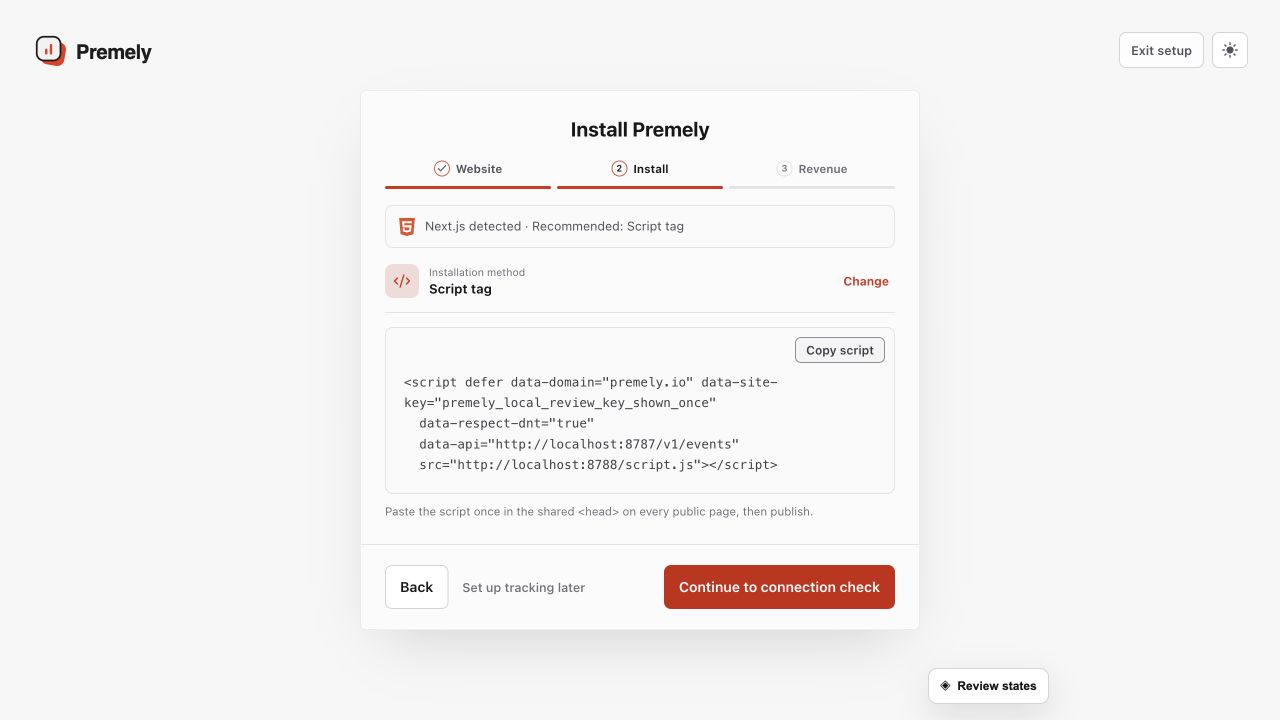
Copy the site-specific code, place it using the selected installation method, then verify the connection. Shown in Premely with disposable demo data; your values will differ.
- 3
Add it to every page
Place the generated code in the shared
headarea of the website, then publish the change. For Shopify, Webflow or Wix, follow the matching guided installer instead. - 4
Visit the live site
Open the public website in a new browser tab. Return to Premely and use the connection status to check whether the site has been verified.
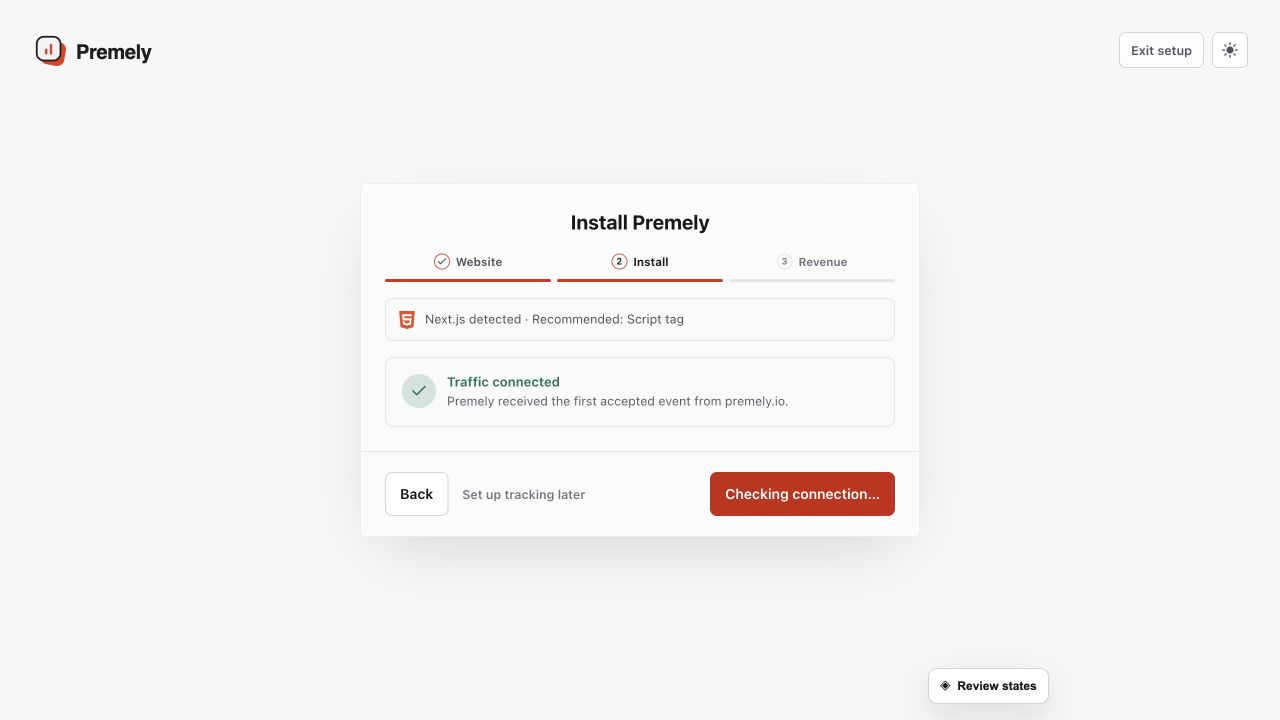
Use the successful connection state as the final installation check, then open the dashboard. Shown in Premely with disposable demo data; your values will differ.
What to expect
Use the workspace code only
Do not copy a code snippet from another site or workspace. A site key belongs to one site context.
Use a real visit to check the connection
The connection status is the source of truth. If it does not change, confirm that the published site contains the generated code in its shared head area.
Useful ways to apply this
A site relaunch
Recheck the connection after moving to a new theme, host or site builder.
A key exposure
Rotate the site key from Site settings, replace the old code and check the connection again.